Most people install a speed plugin, flip a few switches, and never look back. That works until something slows down and nobody remembers who touched the settings three weeks ago. BlinkSpeed Change Logs cover one half of that. Running updates covers the other and both deserve the same attention you gave when you first switched the plugin on.
You set up caching. Minified CSS and JavaScript. Turned on lazy loading. Maybe handed images off to BlinkSpeed’s external services for WebP or AI work. All fairly standard. None of it stays frozen though. Settings get nudged. Someone saves a change at 4pm on a Thursday. Two weeks later the site feels heavier and the room goes quiet because nobody wrote anything down.
Change Logs, write it down. Updates keep the code behind those settings from falling behind WordPress, your theme, and whatever Google decided “fast” means this year.
Without a record, you are guessing. With Change Logs turned on, you have answers.
The Two Sides of “Change Logs”
Beginners often lump everything into one bucket. BlinkSpeed actually gives you two different kinds of history, and they solve different problems.
| What you are looking at | Where to find it | What it tells you |
|---|---|---|
| BlinkSpeed Change Logs | BlinkSpeed → Change Logs tab in WordPress admin | Every settings change on your site: who changed it, when, old value, new value |
| Plugin Release Change Log | WordPress Plugins screen or BlinkSpeed readme / release notes | What BlinkSpeed developers shipped: feature updates, version improvements, bug fixes between versions |
Your site logs track your team. The release notes track the plugin team. You need both for solid WordPress plugin maintenance.
Why This Topic Matters for Everyday Site Owners
Common situations where Change Logs save the day:
- A client says the site “felt faster last month” and nobody knows what was toggled since then
- Two admins share one dashboard and both adjust cache settings without telling each other
- You updated BlinkSpeed and something looks off, but you are not sure if a setting reset
- An agency handed the site back and left zero documentation on optimization choices
- Performance dropped after a busy week of plugin tweaks across the board What regular plugin updates give you that an old version cannot:
- Feature updates new tabs, new optimization options, expanded AI tools
- Version improvements faster cache handling, smoother admin experience, better compatibility with current WordPress
- Bug fixes patches for edge cases on specific hosts, themes, or multisite setups
Skipping updates and ignoring Change Logs is how fast sites quietly become slow ones.
What BlinkSpeed Change Logs Record (At a Glance)
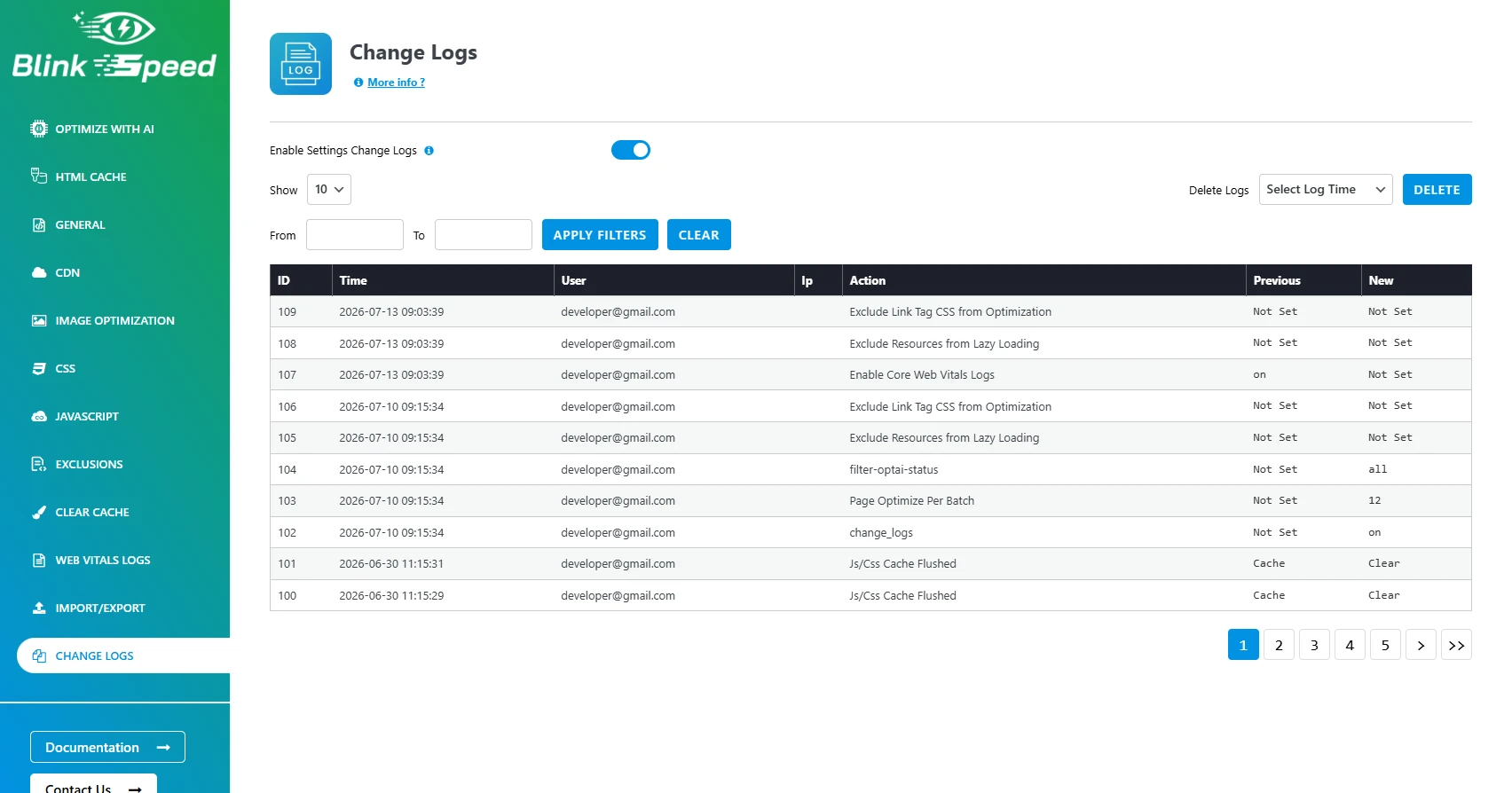
Once you enable Enable Settings Change Logs, each entry in the table captures useful detail. Here is what you will see when you open the Change Logs tab:
| Field | What it means |
|---|---|
| Time | Exact date and time the setting was saved |
| User | Email of the WordPress admin who made the change |
| IP | IP address at the time of the change (helpful on shared or remote teams) |
| Action | Which setting was modified |
| Old | Previous value before the save |
| New | Value after the save |
That is a full paper trail inside your dashboard. No digging through the database. No asking five people in Slack who turned off HTML cache.
Settings changes that typically show up in the log include:
- Cache expiry time adjustments
- Lazy load toggles for images, iframes, or video
- CSS and JavaScript minify or defer options
- CDN URL and exclusion rules
- Image WebP conversion settings
- License activation or general optimization switches
Small change on your end. Big difference on the front end. The log keeps that connection visible.
Plugin Updates and Change Logs Work Better Together
Updates refresh the engine. Change Logs show you who adjusted the steering wheel.
When BlinkSpeed releases a new version, the code behind caching and optimization gets smarter. Version improvements and bug fixes land in your WordPress dashboard as an update notice. That is your cue to follow a simple plugin updates guide back up, read the release notes, update, purge cache, spot-check key pages.
Change Logs pick up where the update leaves off. They show whether your configuration shifted during or after that update. Pair the two and you are not flying blind.
| Step | Plugin update | Change Logs |
|---|---|---|
| Before | Read release notes for feature updates and bug fixes | Confirm logging is enabled |
| During | Run the update from Plugins screen | — |
| After | Purge HTML, CSS, and JS cache | Filter logs by update date; review old vs new values |
| Ongoing | Check for new versions monthly | Trim old entries so the table stays readable |
That rhythm is WordPress plugin maintenance without turning it into a full-time job.
What BlinkSpeed Change Logs Actually Do
Inside your WordPress admin, BlinkSpeed has a Change Logs tab. Flip on Enable Settings Change Logs and the plugin starts writing down every settings change.
Not vague notes. Actual records: the date, the user email, the setting name, what it was before, what it became.
So if your coworker disabled lazy loading on a Friday afternoon, you are not playing detective on Monday. You open the log, filter by date, and there it is.
The in-dashboard Change Logs track your site. The release notes track their work.
Both are useful. They just answer different questions.
Why Bother Updating BlinkSpeed?
BlinkSpeed handles caching, CSS, JavaScript, images, and sometimes calls out to external services for WebP conversion or AI optimization. WordPress moves forward. Themes update. Google keeps changing what “fast” means. An old plugin version was built for a world that already shifted.
Skip updates long enough and you miss version improvements that make caching smarter or admin screens less painful. You sit on bug fixes for edge cases you might not have hit yet Kinsta setups, multisite quirks, a theme that loads scripts in a weird order. And when the team rolls out feature updates like better Web Vitals tracking or tighter CDN controls, you simply do not get them.
Updating when things feel fine is underrated. That is usually the cheapest time to do it.
A Plugin Updates Guide That Does Not Overcomplicate Things
You do not need a staging server and a three-person review board. For most small sites and blogs, this plugin updates guide is enough.
Back up first. Hosting backup, UpdraftPlus, whatever you already use. Non-negotiable.
Skim the release notes. You are looking for three words, basically: feature updates, version improvements, bug fixes. Match them to your life. Running WooCommerce? Care about cache exclusions. Images heavy? Look for WebP or lazy-load mentions. Nothing jumps out? Still update patch releases are often boring on paper and useful in practice.
Pick a quiet hour. Late evening, early morning, slow traffic day. Fewer people on the site if you need to purge cache twice.
Update, then purge. Hit update in Plugins. Open BlinkSpeed, purge HTML/CSS/JS cache from the admin bar or settings panel. Walk through the homepage, one inner page, checkout or contact form if you have them. Broken layout after an update is usually stale cache, not Armageddon.
Turn Change Logs on if they are off. Take one checkbox. In the future you will thank the present you.
That is WordPress plugin maintenance at a level most site owners can actually stick to not a whitepaper, just a habit.
Reading Release Notes Without a Developer Background
Changelogs look dry. Here is what the sections usually mean.
Features updates new stuff. A tab you did not have before. AI optimization expanded. CDN options added. If you want more from the plugin than basic minify-and-cache, this is the section to read.
Version improvements, same job, done better. Faster cache writes. Cleaner handling of combined CSS files. Admin UI that does not make you hunt for the save button. Easy to skip because nothing looks “new,” but your site still benefits.
A bug fixes something broken for someone, now it does not. “Minor bug fixes” sounds dismissible. Often it is a settings save glitch, a hosting detection issue, or an image conversion edge case. Even fixes for problems you never saw make the plugin steadier for everyone.
Two minutes of reading beats twenty minutes of guessing why the lazy load stopped working.
Change Logs Save You After an Update
Plugin updates change code. Settings usually survive but major jumps can rename options or reset defaults you forgot you customized.
With Change Logs running, you can filter from the day you updated and see if anything shifted. Old value and new value sit side by side. Show 10 entries or 50. Trim logs older than 30 days if the list gets noisy.
Does the site feel sluggish the morning after an update? Before you blame the host, check the log. HTML cache turned off? JS defer changed? Happens more than people admit, especially when multiple admins share one dashboard.
That is the pairing that works: updates bring version improvements from the BlinkSpeed team; Change Logs show what changed on your end.
Where This Fits in WordPress Plugin Maintenance
BlinkSpeed is one plugin among many. It is also one of the few that directly touches how fast your pages load.
A rhythm that works for a lot of people:
Update BlinkSpeed when WordPress shows a new version or at least check monthly. Read release notes. Purge cache after. Glance at Change Logs after any big settings session or when performance shifts for no obvious reason. Peek at Web Vitals logs once in a while to confirm gains are holding.
You are not maintaining a data center. You are not ignoring a tool that runs on every page view either.
When to Update (Quick Gut Check)
New version sitting in your dashboard? Update soon.
Changelog mentions a bug fix for something you have been fighting? Update this week.
About to update WordPress core? Update BlinkSpeed first or right after compatibility version improvements often land in plugin releases tied to new WP versions.
Doing a quarterly WordPress plugin maintenance sweep? BlinkSpeed belongs on that list.
FAQs
Q1. Are Change Logs the same as the plugin changelog?
No. BlinkSpeed Change Logs live in your admin and record settings you change who, when, old vs new. The plugin changelog is the list of what changed between BlinkSpeed versions: feature updates, bug fixes, version improvements in the code itself.
Q2. Do I have to enable Change Logs?
No. But if anyone besides you touches BlinkSpeed settings agency, client, teammate leave them on. The checkbox is under the Change Logs tab: Enable Settings Change Logs.
Q3. Will updating break my site?
Rarely, if you back up and purge cache after. Most trouble is cached old CSS/JS, not the update itself. Check key pages. Roll back from backup if something is genuinely wrong that is why step one exists.
Q4. What happens if I never update?
You drift out of sync with WordPress, miss bug fixes, and stack up version improvements you never receive. Performance slowly slips. Support questions get harder when you are three major versions behind.
Q5. Should a plugin updates guide include reading release notes?
Yes. Any honest plugin updates guide tells you to read what changed before you click update. That is how you know whether a release is mostly bug fixes or ships feature updates that need a settings review or cache purge.
Q6. Does updating affect the free version?
Basic stuff HTML cache, minification, lazy loading still works without a paid license after updates. Advanced AI features may need a key. Updates do not strip free features; they improve them.