WordPress serves faster page load when you’re logged in and clicking around the dashboard. For everyone else, each page visit often means the server builds that page again from the ground up and that takes time. HTML cache guide is BlinkSpeed’s way of saving a ready-made copy of that page so the next visitor gets an answer in a snap. We are walking through where to click, and what to watch so you stay confident, not confused.
WordPress HTML Caching
In plain terms, it means “build the page once, ship that snapshot many times.” Your theme, plugins, and database still do their job when WordPress HTML caches or refreshes; repeat visitors (and search bots) often skip that heavy lift. That is different from only shrinking images or minifying CSS, those help, but they do not replace a saved HTML file at the door.
BlinkSpeed sits inside your WordPress admin and handles this layer for you. You do not need to edit code to get started; you need a clear page cache setup and a moment to save your choices.
Page cache setup: Open the right screen in two clicks
Here is the page cache setup path that matches the cache plugin settings itself:
- Log in to WordPress and open BlinkSpeed from the left menu.
- Choose the HTML Cache tab at the top of the settings screen.
You will land on the HTML Caches section, which is the home base for everything below. If you use multisite and your network hides some tabs, your host or admin may have limited what you see; the idea stays the same wherever HTML Cache is available.
Cache Plugin Settings You Will Actually Use
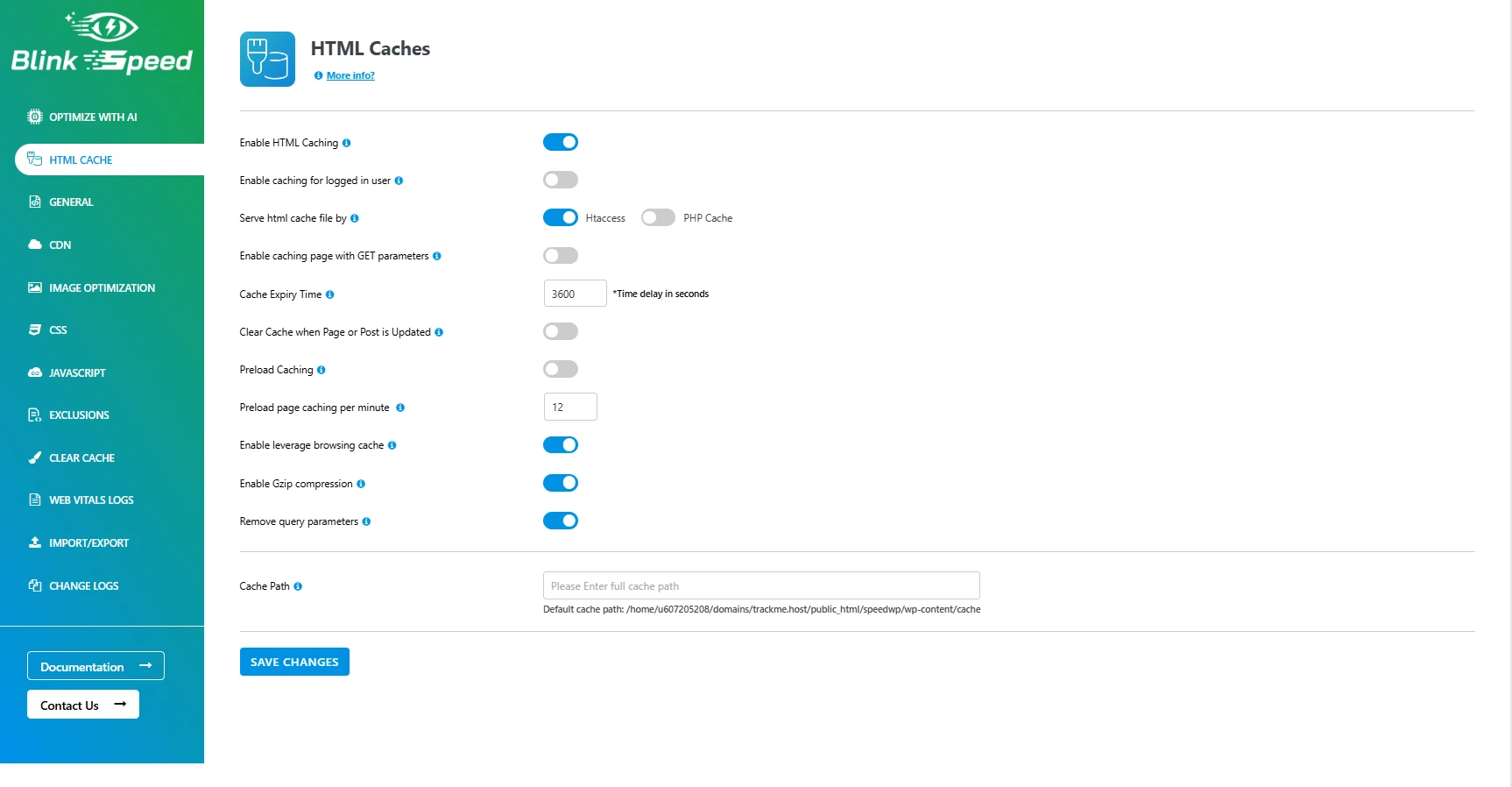
Once you open the HTML Cache tab, think of it as a small control panel. These cache plugin settings are the ones most site owners adjust first. Nothing takes effect until you save (see the end).
Enable HTML Caching
This is the main on/off switch. Turn it on when you want BlinkSpeed to create and serve stored HTML instead of generating pages from scratch on every request. First visit builds the cache; later visits read the saved file when possible.
Enable Caching for Logged-in Users
Logged-in pages can include private data (account, members-only areas, cart, prices). A shared HTML cache is safe only if your setup prevents one visitor from ever receiving another visitor’s personalized page.
If you choose to enable caching for logged-in users, BlinkSpeed is designed to help you stay accurate and fresh. For example by invalidating cache when content is published or updated, so visitors are less likely to see stale pages when changes matter.
BlinkSpeed also documents options like per-role caching for setups where that model fits your site (so different visitor types can be handled more predictably than a single blanket rule).
Serve HTML Cache File By
You choose how the cached file is delivered:
- .htaccess: The server checks for a matching cache file and can serve it without running PHP, which is usually very fast when your host allows .htaccess rewrites.
- PHP Cache: BlinkSpeed handles the check in PHP early in the request. Use this when .htaccess isn’t available, or your environment works better with PHP-based serving.
Pick the mode your host recommends; .htaccess is the typical default when it’s supported.
Enable Caching Page with GET Parameters
URLs with query parameters (for example,?utm_source=google or ?filter=color) can each need their own cached copy. That multiplies cache files and disk use.
Off by default is normal. Turn it on only when you need those query-string URLs to be fast and cached, e.g., marketing links, filters, or affiliate parameters where caching each variation is worth the tradeoff.
Cache Expiry Time
This is how long a cached HTML file is considered valid before it should be refreshed (BlinkSpeed is measured in seconds, where a standard default value of 3600 seconds represents one hour.).
- Shorter expiry → fresher content, more regenerations.
- Longer expiry → fewer rebuilds, maximum speed for mostly static sites.
Tune it to how often your site really changes.
Clear Cache when Page or Post is Updated
After you hit Publish or Update, you expect people to see your changes right away, not to dig around for a “clear cache” button first. With this enabled, BlinkSpeed clears the relevant cached HTML and related listings (archives, pagination, homepage when needed) so the next view rebuilds a current copy.
Preload Caching
Instead of waiting for the first visitor to “warm” the cache, preload walks the site and builds cache files ahead of time. That cuts “cold start” delays and helps first-time visitors and crawlers get fast responses.
Preload Page Caching Per Minute
Preload shouldn’t hammer your server. This setting limits how many pages per minute get preloaded, useful for busy or large sites. Higher values can warm the cache faster on strong hosting; lower values are gentler on small plans.
Enable Leverage Browsing Cache
This tells browsers they can keep static assets (images, CSS, JS) locally for a while using cache headers. Repeat visits feel quicker and your server does less work. It complements HTML cache: HTML may be cached on the server; assets can be reused in the visitor’s browser.
Where is GZIP Heading?
Gzip shrinks bulky text files, your pages, CSS, JavaScript, and JSON, before they leave the server, so visitors get them in less time. This particular option is built with Apache in mind and turns compression on through your .htaccess file. If you’re on Nginx or another stack, check with your host (or use their compression settings) so you’re not guessing.
Remove Query Parameters
Many themes and plugins add version strings to CSS/JS URLs (like ?ver=6.x). Those tiny differences can split caches and cause extra requests. Removing the parameters makes asset URLs consistent, which helps browsers and CDNs hold onto a single cached copy. If anything breaks, some plugins depend on those ?ver= style strings, disable the option again or exclude the problem asset after a quick test.
Cache Path
By default, BlinkSpeed stores cache under wp-content/cache. You can set a custom path if your host or workflow needs files somewhere else. Beginners can leave this blank and use the default unless support gives you a specific folder.
Faster Page Load: What You Should Notice
The honest goal here is faster page load for real people, not just a green score in a testing tool. After you enable HTML caching and save, try this:
- Pop into a private or incognito tab to see what your visitors actually see. This keeps your admin login from skewing the results, unless you’ve specifically toggled on caching for logged-in users.
- You’ll likely notice that the second click feels way faster.Just don’t obsess over every point; external stuff like font loaders and ad scripts make those scores jump around naturally.
If your site looks “broken” or old after you’ve updated a design, don’t panic. Head to the BlinkSpeed Clear Cache tab and hit purge. Usually, the issue is just a stubborn, outdated HTML file hanging around; it’s definitely not a reflection of your tech skills.
HTML Cache Guide: Habits That Keep Things Smooth
Think of this short HTML cache guide as a monthly checklist, not a lecture:
- Turn caching on during a quiet moment, save, then click around your checkout, forms, and login flows.
- After cache plugin settings updates, clear cache once and spot-check key URLs.
- Running ads or dynamic content? You’ll need to decide if every visitor gets the same HTML. If not, use the Exclusions tab to keep specific pages from being cached.
FAQs
Q1. Htaccess or PHP Cache which should I pick?
If your host supports .htaccess rewrites, Htaccess is often the faster path. If saves fail or the host blocks those rules, PHP Cache is there so page cache setup still works.
Q2. How often should cache expire?
Start with the default (3600 seconds) and adjust. News sites might go shorter; small brochure sites sometimes go longer. Watch whether editors complain about delayed updates.
Q3. Where do I clear everything if a page looks wrong?
Use the Clear Cache tab in BlinkSpeed after content or theme changes, or when support asks you to “purge.”.
Q4. Does enabling HTML cache require coding or server access?
No. You turn it on from your WordPress dashboard under BlinkSpeed → HTML Cache, adjust the options you need, and click Save Changes. BlinkSpeed handles the cache logic for you; you only dig into Htaccess vs PHP Cache if your host has a preference or if one method works better on your plan.
Q5. Will WordPress HTML caching still work if I already use a CDN or image optimization?
Yes. HTML caching stores and serves your page’s HTML faster; a CDN and image tweaks address different layers. Many sites run them together, and BlinkSpeed is built to sit inside your normal WordPress workflow so you can keep your existing stack and add faster page load where it matters most, the full page response.