If you just installed BlinkSpeed on WordPress, the General panel is the first place you should slow down and read. These switches decide whether the plugin is allowed to do its job, who gets the faster HTML, and how picky it is about URLs that look like yoursite.com/page?something=1.
A beginner plugin guide to the “General” tab
Think of the General as the front door. You are not tuning every file type here, you are answering a few big questions: Is my license valid? Should BlinkSpeed touch URLs with extra bits on the end? Is optimization on for real visitors? Should logged-in people get the same treatment? Do I want help with INP (that responsiveness score Google cares about)?
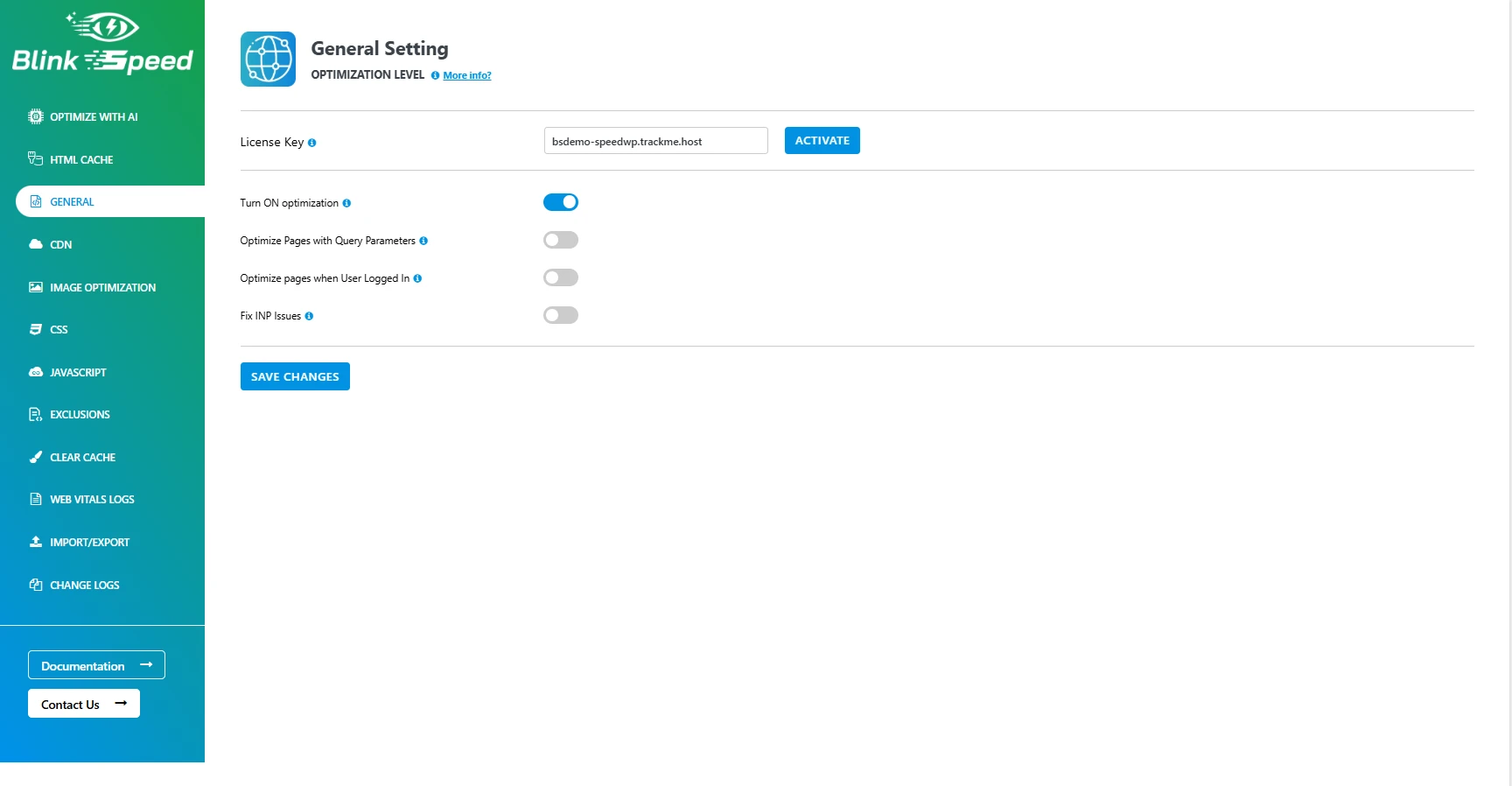
Once those configuration choices make sense, navigating the rest of the plugin’s settings screens feels completely straightforward. There is absolutely no need to memorize every single toggle and label on your first day; you just need a clear handle on what these five specific options actually do for your site.
WordPress optimization settings: why “General” is not optional
WordPress optimization settings sit in different tabs, cache, assets, images, and so on, but many of them only matter after the General says “yes, go ahead.” Skipping this part is more like driving with the handbrake pulled tight, your engine is working fine, but you aren’t actually getting anywhere. If things look a bit broken right after you hit save, try checking your site from a regular browser window where you aren’t logged in as an administrator. Testing it out as a normal visitor is the only way to make sure you are seeing the exact same layout your readers see. That habit alone saves a lot of “it works for me” confusion.
License key: unlock updates and the full feature set
Your license key is the proof that your copy of BlinkSpeed is paid and tied to your account. Paste it in the field, save, and you stay on the supported path: updates, premium capabilities, and help when you need it.
A few practical notes from real setups:
- Keep it somewhere safe (password manager or your BlinkSpeed account area), not only in the plugin box.
- Renewals matter, expired licenses can block updates, which is risky for any WordPress site.
- Multiple sites need a plan that matches how you work (single site vs network); the documentation explains how keys map to domains so you do not accidentally activate the wrong property.
No license drama is required, just treat it like any other paid plugin: valid key, saved settings, done.
Optimize pages with query parameters
A query parameter is the part of a URL after ?, for example sorting, filters, or campaign tags. Those addresses are still real pages people bookmark and share.
When Optimize pages with query parameters is on, BlinkSpeed can treat each distinct URL as its own case and apply full optimization (minify, compress, and related work) instead of always building that view dynamically. That often helps shops, directories, and blogs where visitors live in filtered lists.
The tradeoff is simple: more unique URLs can mean more optimized output to store. On a small blog you may never notice; on a huge catalog, keep an eye on server space and, if the docs warn about load, match the setting to what your host can comfortably handle.
If you are unsure, enable it, watch real pages (especially your heaviest filtered URLs), and roll back if your host shows strain.
Turn on optimization: the main power switch
Turn on optimization is the central on/off for BlinkSpeed’s optimization stack. When it is on, the plugin is allowed to apply the performance work you have configured, things like CSS/JS minification, image optimization, GZIP compression, preload-style behavior, lazy loading, device-aware caching where applicable, and smarter handling of query-parameter pages.
When it is off, you are mostly left with basic HTML caching while heavier techniques pause. That is useful when you are debugging a theme conflict, comparing before/after scores, or fixing something that broke during a big change.
From GZIP compression to lighter pages
GZIP compression shrinks what travels over the wire so browsers unpack a smaller payload. You do not need to become a networking expert, just know that with optimization on, this kind of delivery improvement is part of the package the plugin is allowed to run, alongside the other items mentioned in the documentation.
Browser cache settings in everyday terms
Browser cache settings (often configured alongside caching and delivery features in BlinkSpeed) tell visitors’ browsers how long they can reuse things like stylesheets and scripts without asking your server again. Pair that with server-side cache and compression, and repeat visits feel calmer because the browser is not re-downloading the same static files every time.
Preload Settings
Preload settings and preload-related behavior warm or prioritize important assets so the browser does not discover them too late. You will see more granular preload controls elsewhere in the plugin, but the General switch is what allows that whole family of techniques to participate when you have turned the master optimization option on.
Optimize Pages for logged-in users
Logged-in traffic is special: admins, editors, members, customers with accounts. Some teams avoid optimizing those views because personalization and admin bars can make caching feel “sticky.”
BlinkSpeed’s option to optimize pages for logged-in users applies the same configured techniques (including minification and GZIP compression) to authenticated views when you want that extra speed. The docs also break down how the system wipes the associated cache whenever a logged-in user updates content. It’s a solid feature because it stops people from staring at an outdated version of a page they just edited.
However, if you’re running a membership site with a ton of moving, dynamic parts, leave this turned off initially.
Only flip the switch once you’ve thoroughly tested your dashboards, shopping carts, and user account pages to make sure the caching logic isn’t accidentally breaking how they display data.
Fix INP issues: smoother clicks and taps
INP measures how quickly the page visibly reacts after someone interacts, menu opens, button press, tab switch. High INP usually means the main thread is busy: big JavaScript, too much work up front, or slow assets.
The Fix INP issues path in BlinkSpeed lines up with practical fixes: trimming and deferring non-critical JavaScript, lazy-loading images and iframes so they do not steal time up front, GZIP compression and caching so files arrive smaller and repeat faster, smarter CSS delivery, and preloading key resources so interactions are not waiting on late discoveries.
It is not magic, bulky custom scripts and third-party widgets can still drag INP, but turning this on is a sensible default while you clean up the worst offenders.
FAQ’s Related to BlinkSpeed General Settings for Beginners
Q1. Do I need every advanced tab before touching General?
No. Nail license, turn on optimization, and your choices for query strings and logged-in users first. That is a solid baseline before you chase every niche WordPress optimization settings screen.
Q2. What happens if I disable “Turn on optimization”?
Heavy optimizations pause; basic HTML caching remains. Use that when you need a fair test or a quiet place to fix a conflict.
Q3. Will query-parameter optimization flood my server?
It can be used on very large sites with endless filter combinations. Watch disk and CPU after enabling; your host’s comfort level matters more than any blog’s promise.
Q4. Are browser cache settings the same as BlinkSpeed’s page cache?
They work together. Server or plugin cache stores HTML; browser cache settings help static assets stick locally in the visitor’s browser so return visits cost less.
It is required to understand every knob on day one. Set your license, decide how you want query parameters and logged-in traffic handled, flip optimization on when you are ready, and enable INP help if responsiveness matters for your audience. Save, test as a normal visitor, and adjust, small steps beat guessing every WordPress optimization settings label at once.