A slow WordPress site often has nothing wrong with the server itself; the bottleneck is where your CSS, JavaScript, images, and fonts are delivered from. If visitors are far from your origin host, every stylesheet and hero image travels a long distance before the page can render. That hurts Largest Contentful Paint (LCP), increases Time to First Byte (TTFB) for assets, and drags down scores on PageSpeed Insights and GTmetrix.
BlinkSpeed solves this inside WordPress with a built-in CDN tab. Instead of editing theme files or writing custom rewrite rules, you point BlinkSpeed at your CDN hostname, choose which file types to offload, and let the plugin rewrite URLs during its normal optimization pipeline. This article is a practical CDN integration guide for site owners and developers who want reliable static asset delivery and faster global loading without leaving the BlinkSpeed dashboard.
What BlinkSpeed CDN Does (And What It Does Not)
When Turn ON optimization is enabled under BlinkSpeed → General, BlinkSpeed processes each page through an output buffer. As it minifies and combines CSS and JavaScript, lazy-loads media, and caches HTML, it can also replace your site’s origin URLs with your CDN URL for the asset types you select.
Supported file types in the CDN tab:
| Type | What gets rewritten |
|---|---|
| Image | JPG, PNG, GIF, WebP, SVG, and other image references |
| Css | Stylesheets and combined CSS cache files |
| Js | Script tags and combined JS cache files |
| Fonts | Web fonts (woff, woff2, ttf, eot, etc.) |
| Audio | Audio sources where applicable |
| Video | Video sources where applicable |
BlinkSpeed only activates CDN rewriting for a type when the CDN URL for that type is different from your site URL. Paths you list under Exclude path from CDN are skipped; for example, /wp-includes/ keeps core WordPress assets on the origin.
BlinkSpeed CDN is NOT a CDN provider. You still need an account with Cloudflare, Bunny CDN, Amazon CloudFront, KeyCDN, or another provider. BlinkSpeed connects WordPress to the hostname that provider gives you.
Before You Start: Cdn Setup WordPress Checklist
Complete these steps before opening the CDN tab:
Create a pull or push zone with your CDN provider and note the CDN URL (e.g. https://cdn.yoursite.com or https://d111111abcdef8.cloudfront.net).
Point the CDN at your WordPress origin so the CDN can fetch files from your live site (standard pull-zone setup).
Confirm HTTPS; enter the CDN URL in BlinkSpeed with https:// if your zone supports SSL.
Enable BlinkSpeed optimization – BlinkSpeed → General → Turn ON optimization must be on; CDN rewriting runs as part of the optimization.
Purge old caches after saving CDN settings (see Verify and purge cache).
How To Open The CDN Tab in BlinkSpeed
- Log in to WordPress Admin.
- In the left sidebar, click BlinkSpeed.
- In the left tab panel, select CDN.
The CDN screen shows one or more CDN configuration rows. Each row has three fields and a remove button. Use Add More at the bottom to create additional rows; for example, one CDN URL for images and another for CSS/JS.
Step-By-Step: Configure Each CDN Row
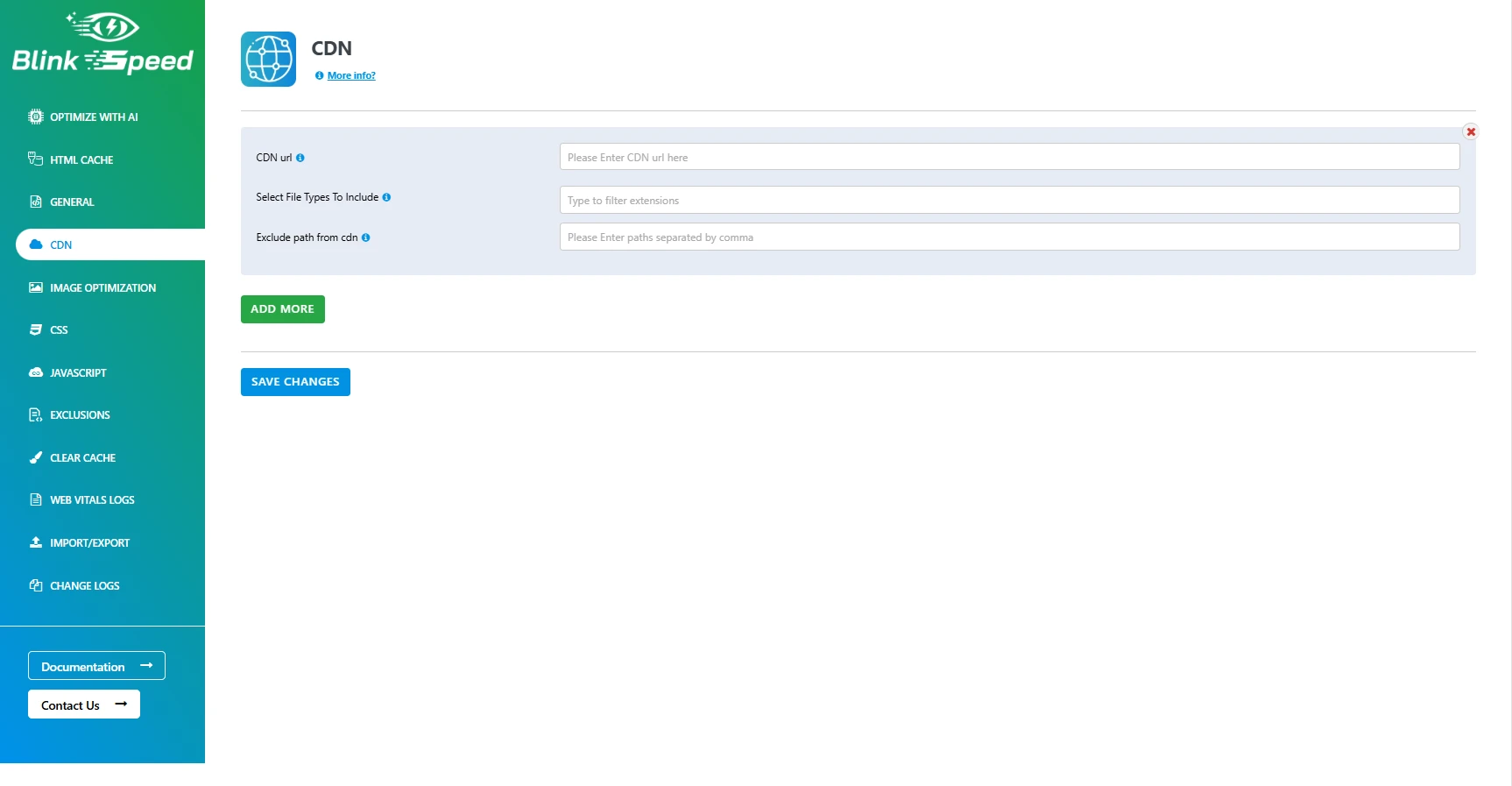
Step 1: Enter your CDN URL
In the CDN URL, paste the full URL from your provider, including the protocol:
✔Correct: https://cdn.example.com
✔Correct: https://d1234.cloudfront.net
𐄂 Avoid: cdn.example.com (missing https://)
Step 2: Select File Types To Include
Use Select File Types To Include to choose which assets should use this CDN URL.
Available options: Image, Fonts, JS, CSS, Audio, Video, Select All.
Step 3: Exclude Paths (Optional But Recommended)
In Exclude paths from CDN, enter comma-separated path fragments that must stay on the origin. Example: /wp-includes/, /wp-admin/
BlinkSpeed checks each asset URL; if it contains an excluded fragment, the origin URL is kept. This helps avoid breaking admin scripts, bundled plugin assets in core directories, or paths your CDN is not configured to pull.
Step 4: Add More CDN Rows (Optional)
Click Add More to duplicate the row structure. Each row supports its own URL, file types, and exclusions. This is useful when your image CDN hostname differs from your static JS/CSS hostname.
Step 5: Save Changes
Click Save Changes at the bottom of the CDN tab. BlinkSpeed validates file types, sanitizes the URL, and stores the configuration.
A toast notification confirms success. If folder permission errors appear at the top of the page, fix wp-content/cache/ permissions before expecting CDN + cache features to work fully.
What Happens After You Save
- Loads your CDN configuration into runtime settings (image_cdn_url, js_cdn_url, etc.).
- During CSS, JS, and HTML optimization, replaces matching site URL references with the CDN URL when the type is enabled and the path is not excluded.
- Serves combined/minified files from wp-content/cache/bs-cache/; when CDN is enabled for CSS/JS, those cache URLs can also be rewritten to the CDN host.
Editors and administrator users still receive the unoptimized page so they can preview changes accurately. They can purge cache from the BlinkSpeed item in the WordPress admin bar.
Example Configurations
Example A – Single CDN for all static assets
| CDN URL: | https://cdn.yoursite.com |
| File types: | Select All |
| Exclude path: | /wp-includes/,/wp-admin/ |
Best for: simple CDN setup WordPress stacks with one pull zone.
Example B – Images only (maximum LCP benefit)
| CDN URL: | https://images.yoursite.com |
| File types: | Image |
| Exclude path: | (leave empty or exclude uploads backup paths) |
Best for: teams rolling out CDN in phases, prioritizing faster global loading for media first.
Example C – Split CSS/JS and images
Row 1:
| CDN URL: | https://static.yoursite.com |
| File types: | Css, Js, Fonts |
Row 2:
| CDN URL: | https://images.yoursite.com |
| File types: | Image |
Best for: providers that issue separate hostnames per asset class.
VERIFY AND PURGE CACHE
After any performance CDN setup change:
Open BlinkSpeed → Clear Cache and purge HTML and CSS/JS cache, OR
Use BlinkSpeed in the admin bar → purge all cache or per-page cache.
Stale combined files may still reference the old origin until purged. Test in an incognito window or while logged out, since logged-in editors bypass front-end optimization.
Quick verification:
- View page source and confirm image src or link href URLs use your CDN hostname.
- Run Google PageSpeed Insights or GTmetrix and check static requests hit the CDN edge.
- Open BlinkSpeed → Web Vitals Logs over time to see whether LCP improves for key URLs.
For multisite networks, configure CDN at the network level unless Manage Each Site Separately is enabled under General.
Troubleshooting
| Issue | Fix |
|---|---|
| Assets still load from origin | Optimization off in General; wrong file types; path excluded; cache not purged |
| Mixed content warnings | CDN URL must use https:// if the site uses SSL |
| Broken styles or scripts | Add /wp-includes/ to Exclude path from CDN; confirm CDN origin is correct |
| Admin fine, visitors see old URLs | Purge BlinkSpeed cache; test logged out |
| Images broken on CDN | Ensure CDN origin and CORS/cache headers allow image types |
Free Vs Licensed Blinkspeed
CDN URL rewriting does NOT require a license key. Advanced cloud features (critical CSS and WebP via API on all pages, AI batch optimization) are separate. CDN configuration remains available in the free tier as long as optimization is on.
FAQ Related How to Configure BlinkSpeed CDN Settings for WordPress
Q1. Do I need a separate CDN plugin?
No. BlinkSpeed includes CDN integration in the same dashboard as caching and minification.
Q2. Can I use multiple CDN providers?
Yes. Add one row per CDN URL with the file types that hostname should serve.
Q3. Does BlinkSpeed provision DNS?
No. Create the CNAME or pull zone in your CDN provider’s panel, then paste the URL into BlinkSpeed.
Q4. Will CDN slow down my admin?
No. Users with edit_others_pages skip front-end optimization.
Q5. Should I exclude WooCommerce cart/checkout?
Use the Exclusions tab for full pages. Use Exclude path from CDN for path fragments.