Images are often the single heaviest element on any WordPress page. They account for a significant portion of page weight, slow down initial rendering, and directly impact your Core Web Vitals scores. If you are running BlinkSpeed on your WordPress site, the Image Optimization settings panel is one of the most important areas to configure correctly.
lass=”yoast-text-mark” />>This guide walks through every option inside the BlinkSpeed Image Optimization tab, explains what each setting actually does under the hood, and tells you exactly when to enable or skip each one.
Why Image Performance Matters for Your WordPress Site
Before diving into the plugin settings, it is worth understanding why you need an optimize images plugin in the first place.
>Google’s Core Web Vitals – particularly Largest Contentful Paint (LCP) – are heavily influenced by how quickly the largest image on your page loads. A slow-loading hero image or banner can drag your LCP score above the 2.5-second threshold, which harms both user experience and search rankings.
>Beyond LCP, uncompressed images bloat your total page size, raise your bandwidth costs, and make mobile users wait significantly longer on cellular connections. The image compression WordPress ecosystem has evolved to tackle all of these problems, and BlinkSpeed brings several of these solutions together in a single, unified settings panel.
Accessing the Image Optimization Settings in BlinkSpeed
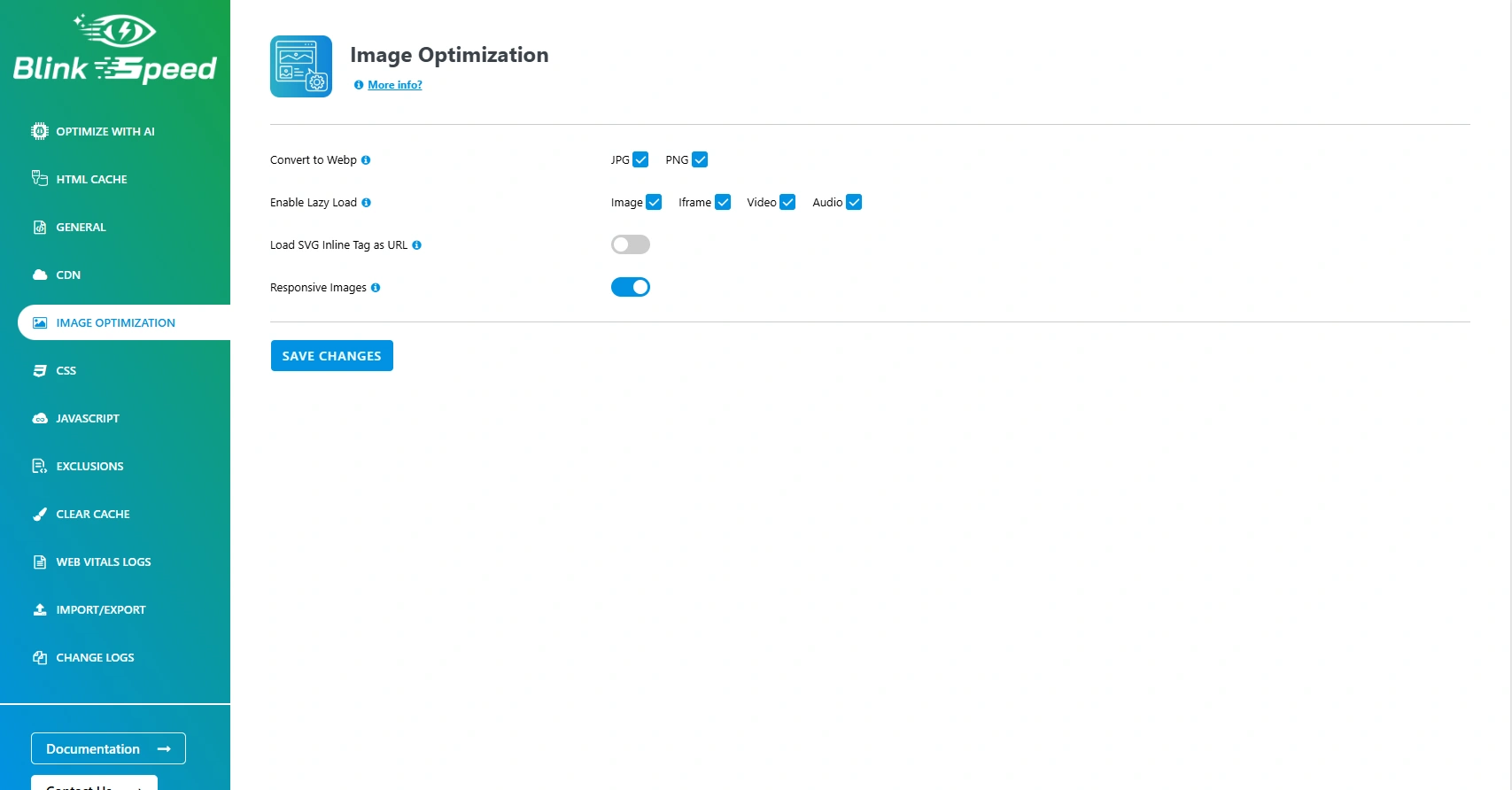
Once BlinkSpeed is installed and activated, navigate to BlinkSpeed → Image Optimization from your WordPress admin menu. The panel contains five core controls:
- Convert to WebP (JPG / PNG)
- Enable Lazy Load (Images, Iframes, Videos, Audio)
- Load SVG Inline Tag as URL
- Responsive Images
Each is a toggle. Let’s go through them one by one.
WebP Conversion – Faster Image Loading Through Modern Formats
What WebP Conversion Does
The first and arguably most impactful setting in the panel is Convert to WebP. BlinkSpeed provides two separate toggles – one for JPG files and
one for PNG files – giving you precise control over which image types get converted.
When enabled, BlinkSpeed sends your image URLs to its cloud API, which processes and returns WebP versions of your images. The converted files are stored locally in your WordPress uploads folder under wp-content/uploads/bs-webp/, keeping things organised and making cache clearing straightforward.
WebP is a modern image format developed by Google that delivers:
- Up to 30% smaller file sizes compared to JPG at equivalent visual quality
- Up to 50% smaller file sizes compared to PNG for images with transparency
- Native support in all major browsers including Chrome, Firefox, Edge, and Safari (version 14+)
For most WordPress sites, enabling WebP conversion for both JPG and PNG is the right call. The visual quality remains identical to the original while the file size drops substantially – directly contributing to faster image loading across your entire site.
Free vs Premium WebP Conversion
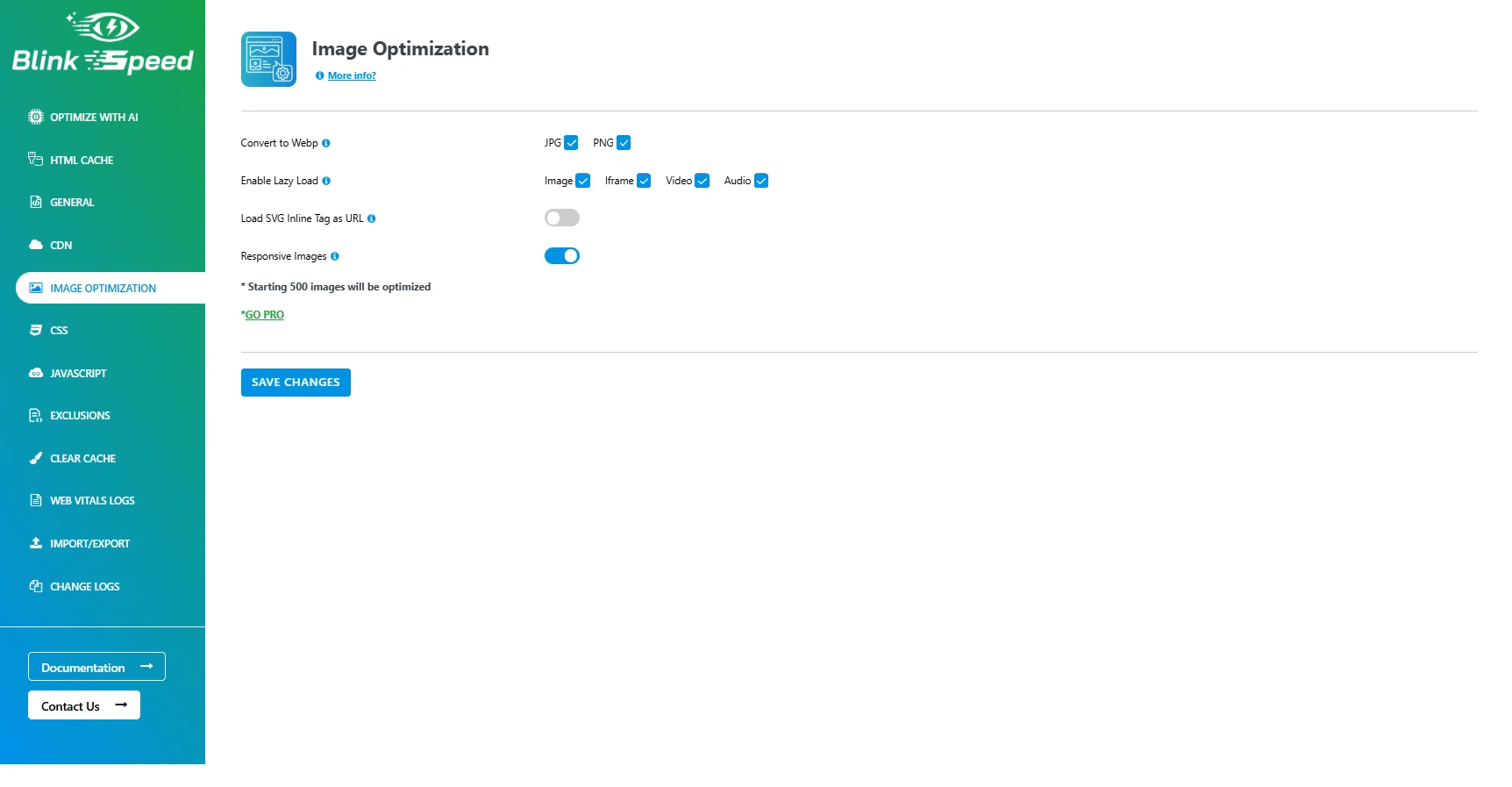
It is important to understand how BlinkSpeed handles WebP conversion depending on your license status. Without an active license key, WebP conversion runs only on your homepage. With a premium license, image compression WordPress-wide is unlocked, meaning every page on your site benefits from WebP delivery. This is one of the key reasons to upgrade if you are running a content-heavy site with images on every page.
Should You Enable WebP for Both JPG and PNG?
In most cases, yes. JPG conversion is almost always worthwhile – the file size reduction is consistent, and the quality difference is imperceptible. PNGs with large transparent areas or graphics with text tend to compress very well to WebP. Photographs saved as PNGs also benefit greatly.
Lazy Load Images – Only Load What the Visitor Can See
How Lazy Loading Works in BlinkSpeed
The Enable Lazy Load section covers four resource types: Images, Iframes, Videos, and Audio. This is one of the most effective techniques for faster image loading and is strongly recommended for virtually every WordPress site.
Lazy loading defers the loading of off-screen resources until the user scrolls toward them. Instead of loading every image on the page at once when the visitor arrives, the browser only loads images that are within or near the visible viewport. Images further down the page are loaded on demand as the user scrolls.
Technically, BlinkSpeed implements lazy loading by replacing the src attribute on image tags with a placeholder data URI (a tiny transparent SVG) and storing the real image URL in a data-* attribute. A JavaScript then uses the browser’s Intersection Observer API to swap in the real image source as each element enters the viewport.
This approach is clean, conflict-free, and does not rely on jQuery, keeping the added JavaScript footprint minimal.
Lazy Load for Images
Enabling lazy load for images is the most impactful option here. On a typical blog post with ten or more images, a visitor who reads only the first half of the page will never trigger downloads for the images they never see. This directly reduces page weight on initial load, improves Time to First Byte, and most importantly, helps with LCP since the browser focuses resources on above-the-fold content first.
The lazy load implementation in BlinkSpeed also handles background images defined in inline styles, which many plugins miss. The plugin tracks inline background-image CSS properties and applies the same deferred loading logic to those elements via a data-bglz attribute, ensuring comprehensive lazy load images coverage across your entire page output.
Lazy Load for Iframes, Videos, and Audio
These three options work on the same principle. Iframes – commonly used for embedding Google Maps, contact forms, or third-party widgets – can be extremely heavy on initial page load. A single Google Maps embed can add several hundred kilobytes and multiple network requests to your page. Lazy loading iframes removes this cost from the initial render entirely.
Video and audio elements embedded directly in your pages are similarly deferred. If you embed self-hosted videos using the HTML5 <video> tag, enabling this option prevents the brow
ser from beginning preload or autoplay logic until the element is near the viewport.
For most WordPress sites, enabling all four lazy load options is the recommended configuration.
What Gets Excluded from Lazy Loading
BlinkSpeed automatically excludes about:blank sources from lazy loading. You can add additional exclusions – specific image URLs, file paths, or CSS classes – through the Exclusions tab. This is useful for LCP images (the main hero image visible above the fold on page load) which should never be lazy loaded, since deferring the LCP element actually hurts your Core Web Vitals score rather than helping it.
SVG Inline Tag as URL – Reducing DOM Size
SVGs embedded inline in HTML (<svg>…</svg> tags) can add thousands of nodes to the DOM, especially when complex illustrations or icon sets are inlined directly into the markup. Large DOMs increase memory usage, slow down style calculations, and hurt rendering performance.
The Load SVG Inline Tag as URL option converts inline SVG tags into standard <img src=”…”> references pointing to the SVG file. This dramatically reduces DOM complexity while retaining full visual fidelity – SVG files render identically whether loaded inline or via a URL reference.
Enable this setting if your theme or page builder inlines SVG graphics directly into the HTML output. It is safe for most setups and can noticeably reduce DOM node count on icon-heavy pages.
Responsive Images – Serving the Right Size for Every Device
The Responsive Images toggle enables mobile-specific image sizing. When activated, BlinkSpeed serves smaller image variants to mobile devices rather than delivering the same full-resolution image that desktop users receive.
>This is particularly relevant for WordPress sites where images are uploaded at large dimensions and then displayed at much smaller sizes on mobile. A 2000-pixel-wide image being displayed at 400 pixels on a smartphone is wasting significant bandwidth. With responsive images enabled, BlinkSpeed uses the device context to serve appropriately sized images, directly reducing data transfer on mobile connections.
>This setting works alongside WordPress’s native responsive image support (srcset attributes) and complements the WebP conversion and lazy load options described above.
How These Settings Work Together
The real power of the BlinkSpeed Image Optimization panel comes from combining all of its settings rather than enabling them in isolation. Here is what happens when a visitor loads a page with all settings enabled:
- The page HTML is served from BlinkSpeed’s HTML cache
- Images below the fold have their src replaced with a tiny placeholder, so the browser skips their downloads on initial load
- The hero or above-the-fold image loads normally – ensuring LCP is not penalised
- As the visitor scrolls, the lazy load JavaScript triggers image downloads on demand
- Those images are served in WebP format (30–50% smaller than the originals)
- On mobile devices, smaller image dimensions are served, cutting download times further
- Inline SVGs have been converted to URL references, keeping DOM size manageable
The combined effect on page load time is substantial. BlinkSpeed’s own documentation cites image optimisation reducing image-related page weight by 25–50%, and that figure compounds with lazy loading since many images are never downloaded at all.
Free vs Premium: What Image Features Are Available Without a License?
| Feature | Free Version | Premium Version |
|---|---|---|
| Lazy load images (all pages) | ✓ | ✓ |
| Lazy load iframes / video / audio | ✓ | ✓ |
| SVG inline to URL | ✓ | ✓ |
| Responsive images | ✓ | ✓ |
| WebP conversion (homepage only) | ✓ | ✓ |
| WebP conversion (all pages) | ✗ | ✓ |
| Advanced image compression WordPress-wide | ✗ | ✓ |
The free tier gives you meaningful faster image loading through lazy loading and responsive images across your entire site. The premium upgrade primarily extends WebP conversion and advanced image compression to every page rather than just the homepage.
Common Mistakes When Configuring Image Optimization in WordPress
Converting PNGs Used as Transparent Overlays
Most transparent PNGs convert perfectly to WebP, which also supports transparency. However, if you notice any visual issues with a specific PNG after WebP conversion, you can disable PNG conversion and keep only JPG conversion enabled. This is a rare edge case but worth knowing.
Not Accounting for CDN-Served Images
If your images are served from a CDN rather than your origin server, BlinkSpeed’s WebP conversion still processes the original files. You may need to configure your CDN to serve the WebP versions or purge CDN cache after running the image optimization process.
Frequently Asked Questions for BlinkSpeed Image Optimization
Q1. Does WebP conversion affect image quality?
WebP conversion in BlinkSpeed uses a quality setting that preserves visual fidelity while reducing file size. The difference is imperceptible to the human eye in the vast majority of cases. If you need lossless WebP for specific images, adjust the settings
Q2. How does lazy load images affect SEO?
Lazy loading does not harm SEO. Google’s crawler supports JavaScript-based lazy loading and processes deferred images correctly during indexing. In fact, lazy loading improves your Core Web Vitals scores, which are a Google ranking signal, so enabling it generally has a positive .
Q3. Does the optimize images plugin work with WooCommerce product images?
Yes. BlinkSpeed’s lazy load and WebP conversion work across all WordPress content types including WooCommerce product pages, shop archives, and category pages. The premium license is required for WebP conversion on WooCommerce pages beyond the homepage.
Q4. Will enabling lazy load images break my image sliders or galleries?
Occasionally, JavaScript-based sliders that load images immediately on initialisation can conflict with lazy loading. BlinkSpeed provides an exclusion list where you can add image URLs or CSS class names associated with your slider to bypass lazy loading for those specific elements. Most modern sliders handle lazy-loaded images correctly without any exclusions needed.
Q5. What is the difference between image compression WordPress plugins and BlinkSpeed?
Dedicated image compression WordPress plugins typically focus only on compressing and resizing images at upload time. BlinkSpeed takes a broader approach – it combines delivery optimisation (WebP conversion, lazy loading, responsive images) with page-level caching, CSS and JS optimisation, and Core Web Vitals monitoring in a single plugin. You may still want a dedicated compression plugin to optimise images before upload, while BlinkSpeed handles delivery-side optimisation.
Q6. How do I know if WebP images are actually being served?
Open your site in Chrome, open DevTools (F12), go to the Network tab, and filter by “Img”. Look at the response headers for any image request – the Content-Type header will show image/webp if the WebP version is being served correctly. You can also check the response URL to confirm it is pointing to the /bs-webp/ directory where BlinkSpeed stores converted images.
Q7. Can I use the lazy load feature without WebP conversion?
Absolutely. Every setting in the Image Optimization panel is independent. You can enable lazy loading across all resource types while leaving WebP conversion disabled, or enable WebP conversion without lazy loading. Configure only what your site needs.