Slow websites lose visitors fast. A lot of that drag comes down to CSS, the stuff behind your fonts, colors, spacing, and how the page is laid out.
If your stylesheets are bloated, split across too many files, or loading in a bad order, the page just feels sluggish like it is struggling to catch up. Text shows up unstyled for a beat. Things jump around while the page settles.
BlinkSpeed fixes most of this from one settings panel. You do not need to edit any theme files or bring in a developer for this. This guide goes through each CSS setting and helps you figure out what to enable and what’s better left unchanged.
Why CSS Slows Sites Down
Every stylesheet is a file your browser has to fetch before it can show a styled page. Many WordPress sites load a pile of theme styles, plugin styles, page builder styles, maybe a few Google Font requests on top.Some of that CSS never even gets used on the page someone is viewing. The browser still downloads it. Still read through it. Still waits before painting anything useful on screen.
That wait hurts real metrics Google cares about: load time, visual stability, how quickly content appears. BlinkSpeed’s CSS tab is built to cut through that mess. Flip the right switches and let the plugin do the work.For the full technical breakdown,
Enable CSS Optimization Turn This On First
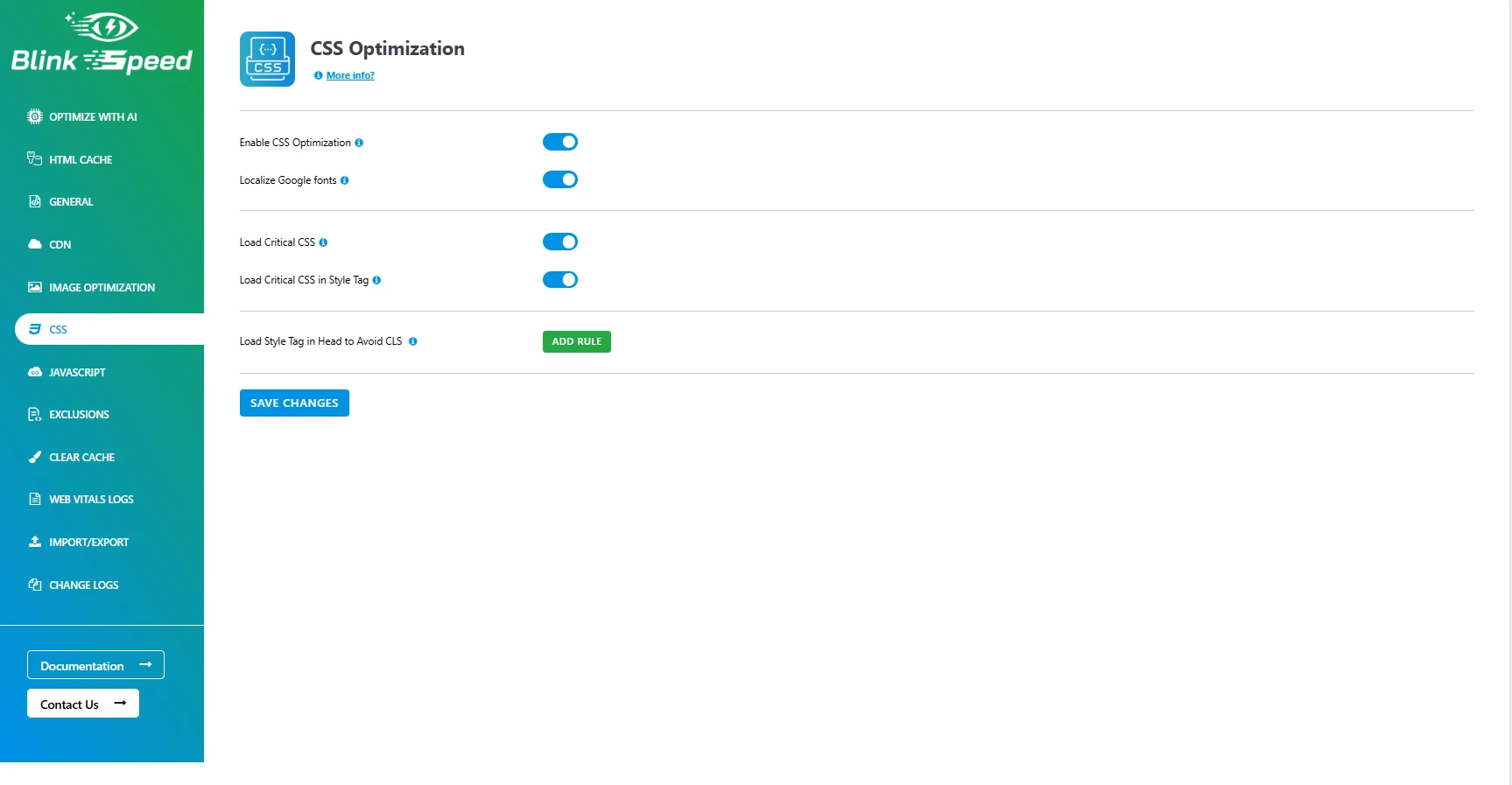
This is the main switch. Nothing else in the CSS section works properly without it.
Flip on Enable CSS Optimization and BlinkSpeed gets to work on your stylesheets. It will minify CSS by cutting out the extra spaces, line breaks, and comments your browser never needed in the first place. A 48 KB file can easily shrink to around 24 KB. Small savings per file, but they stack up fast across every page view.
It also tries to combine CSS files where it can pull multiple small stylesheets into fewer requests. Ten separate files means ten round trips to your server. Three files means three. Less waiting, faster render.
What changes on your site
Pages load a bit snappier. Your server sends leaner files. The groundwork is laid for critical CSS and font localization to actually work.
When to leave it off
Only during active theme editing when you need to read raw CSS in your browser inspector. Debugging layout issues is easier with unminified files. Once you are done tweaking, turn it back on and clear your cache. For a live site, keep this on.
Localize Google Fonts Worth It for Most Themes
Open your site in Chrome DevTools, Network tab, and filter by “font.” You’ll likely notice requests going to fonts.googleapis.com and fonts.gstatic.com that’s completely normal for WordPress themes that use Google Fonts.
Each external font request adds a DNS lookup and a connection to a server you do not control. On slower connections, fonts arrive late. Text renders in a fallback font first, then swaps when the real one loads. That swap can shift your layout.
Localize Google Fonts downloads those font files to your server and rewrites the URLs in your CSS automatically. Visitors load fonts from your domain instead of Google’s.
You do not download anything manually. You do not edit theme files. Toggle it on, save, clear cache, done.
Good reasons to enable it:
- One less external dependency slowing things down
- Fonts load more reliably on networks that block Google services
- Slightly better privacy since visitor IPs are not hitting Google’s CDN just to load a typeface
If your theme uses Google Fonts and most do turn this on.
Load Critical CSS The Setting That Actually Moves the Needle
Here is where you start seeing real speed improvements.
Your theme’s main stylesheet might be 180 KB. But the styles needed to render your header, hero image, and navigation what people see without scrolling might only be 6 KB. That small chunk is your critical CSS. Without it, the browser grabs the full 180 KB file before showing anything styled. Visitors get a flash of plain, ugly text for a second. Looks broken even when it is not. PageSpeed scores drop.
Load Critical CSS tells BlinkSpeed to figure out which styles matter for above-the-fold content on each page and serve those first. The rest of the stylesheet loads afterward without blocking the initial render.
What about styles you are not using?
Full theme files are packed with rules for footers, sidebars, archive pages, and widgets that are not visible on first load. Critical CSS loading keeps that bulk out of the initial render path. On its own, this can make a real dent in your scores and help improve Core Web Vitals First Contentful Paint and Largest Contentful Paint tend to move first.
BlinkSpeed generates critical CSS per page your homepage gets its own set, your about page gets another. Once built, it is cached. You are not rebuilding it on every visit.
Load Critical CSS in Style Tag One Step Further
This option only shows up after Load Critical CSS is enabled. It takes the same idea and pushes it harder.
Instead of preloading critical CSS as a separate file the browser still has to request, BlinkSpeed drops it straight into your HTML inside a style tag. The browser reads those rules the moment it parses the page. No extra download. No extra wait.
Turn this on if:
- PageSpeed still flags render-blocking stylesheets after enabling critical CSS
- You notice a brief unstyled flash on mobile
- First paint speed matters more to you than a slightly larger HTML file
The HTML page itself gets a bit bigger since the CSS lives inside it. For most sites that trade-off is fine. The first render wins.
Enable Load Critical CSS first, then flip this on. They are meant to run together.
Load Style Tag in Head to Avoid CLS Stop the Jumping
You have seen this before. A page loads and everything seems fine at first, then elements start moving around. Text appears, a button shifts position, an image loads late and pushes things down, or the menu suddenly jumps. That’s a layout shift in action. Google measures this as CLS (Cumulative Layout Shift), and high CLS can hurt both your rankings and your visitors’ experience.
A common cause: styles loading too late. The browser renders HTML first with default sizing, then CSS arrives and everything resizes. Load Style Tag in Head to Avoid CLS lets you point BlinkSpeed at specific style tags that should sit in your page’sinstead of the body. Styles in the head apply before body content renders. Elements stay put from the start.
Setting it up
- Go to CSS Optimization in BlinkSpeed settings
- Find Load Style Tag in Head to Avoid CLS then Hit Add Rule
- Type in a snippet of text that identifies the problem style tag a class name, an ID, anything unique inside that tag
- One rule per shifting style tag
- Save and clear your cache
You do not need rules for every style tag on your site. Only add them for tags causing visible jumps. Run your homepage through PageSpeed Insights or Chrome DevTools they will show you which elements are shifting.Pair this with critical CSS and your above-the-fold content should look stable from the first frame.
A Sensible Starting Setup
Not sure what to enable? Start here:
| Setting | Start with |
|---|---|
| Enable CSS Optimization | On |
| Localize Google Fonts | On |
| Load Critical CSS | On |
| Load Style Tag in Head to Avoid CLS | Add rules only if you see shifting |
Save everything. Clear your BlinkSpeed cache plugin you run.
If something looks broken, turn off CSS optimization, find the problem stylesheet in the Exclusions tab, and turn it back on. That happens occasionally with poorly coded plugin styles, easy to fix.
FAQs Related to BlinkSpeed CSS Optimization
Q1. Do I still need a separate plugin to minify CSS?
No. With Enable CSS Optimization on, BlinkSpeed handles it. One less plugin cluttering your admin panel.
Q2. Can combining CSS break my layout?
Hardly ever, but it happens. A badly written plugin stylesheet might not play nice when merged. If your site looks wrong after enabling the setting, exclude that specific file in BlinkSpeed’s Exclusions tab and you are back to normal.
Q3. What is critical CSS, really?
Think of it as the minimum styling needed to make the visible part of your page look right before someone scrolls. Not the whole theme file, just the slice that matters for first impressions.
Q4. Does BlinkSpeed strip out all unused CSS permanently?
Not exactly. It keeps unused rules from blocking your first render by loading critical CSS first. The full stylesheet still loads for everything below the fold.
Q5. Which settings matter most for Core Web Vitals?
Load Critical CSS and Load Critical CSS in Style Tag hit First Contentful Paint and Largest Contentful Paint hardest. Load Style Tag in Head to Avoid CLS goes after layout stability. Localizing Google Fonts helps when late font loading causes shifts. Stack them together and you have a solid shot to improve Core Web Vitals without touching code.
Q6. Should I turn everything on at once?
Work in stages. Start with the main optimization toggle and font localization. Check the site. Add critical CSS next. Only add CLS head rules if you actually see elements jumping during testing. Easier to spot problems that way.