JavaScript is one of the biggest performance bottlenecks on WordPress sites. It blocks rendering, delays interactivity, and contributes heavily to poor Core Web Vitals scores – particularly Total Blocking Time (TBT) and Interaction to Next Paint (INP). Getting your script optimization right can be the difference between a sluggish site and one that scores 90+ on Google PageSpeed Insights.
BlinkSpeed’s JavaScript settings panel gives you precise control over how every script on your site is handled – from minification to deferred loading, inline script management, and conflict-safe exclusions. This guide covers every setting in the JS panel and Exclusions tab, explains what happens behind the scenes, and tells you exactly how to configure each option to improve page speed.
Why JavaScript Slows Down WordPress Sites
Before getting into the settings, it is worth understanding why script optimization matters so much.
When a browser encounters a standard <script> tag in your HTML, it pauses parsing the page, downloads the file, executes it, and only then continues rendering the rest of the page. This is called render-blocking behaviour. Even a small script file can delay the display of visible content by hundreds of milliseconds if it is loaded at the wrong time.
WordPress compounds this problem by default. Themes, plugins, and page builders each register their own scripts, often without coordination. A typical WordPress page can have 15 to 30 or more separate JavaScript files loading sequentially, none of them minified, none of them deferred. The result is a page that looks fast during development but crawls in production.
BlinkSpeed addresses this with a layered approach: minify JS files to reduce their size, delay JavaScript loading until after the page renders, and give you granular control over anything that conflicts.
Navigating to the JavaScript Settings
In your WordPress admin, go to BlinkSpeed → JavaScript Optimization. The main JS tab contains the core loading controls. The Exclusions tab (under BlinkSpeed’s main menu) contains the advanced JS exclusion rules. The General tab holds the INP fix toggle, which works in tandem with JS optimisation.
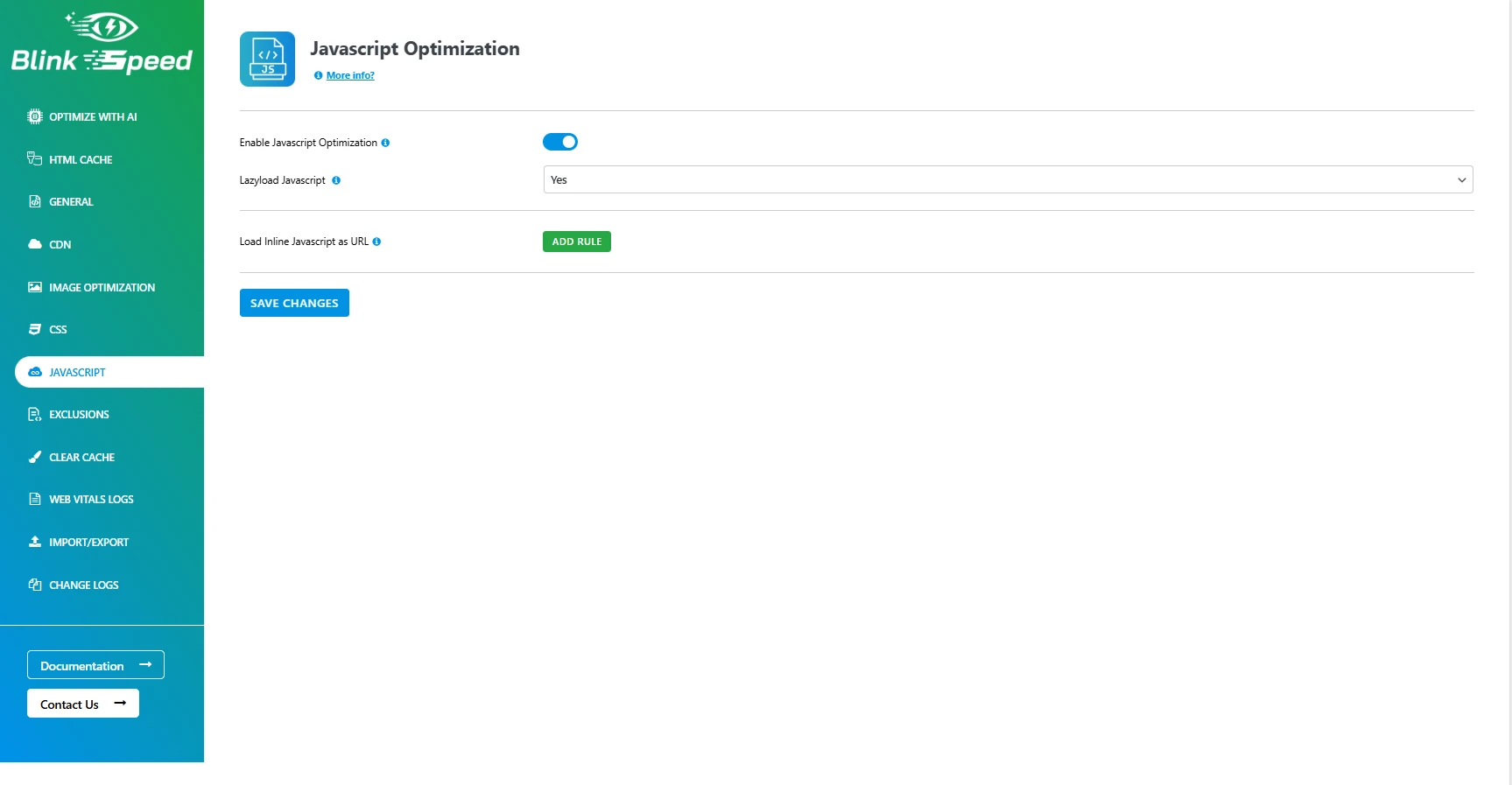
Enable JavaScript Optimization – The Master Switch
The first toggle in the panel is Enable JavaScript Optimization. This is the master switch that activates the entire JS processing pipeline. When turned on, BlinkSpeed begins intercepting all script tags in your page HTML output and processing them through its optimization engine.
With this enabled, BlinkSpeed will:
- Read every <script> tag in the rendered HTML
- Minify JS files that are not already minified, using its built-in BlinkSpeed_BSjsMin minifier (based on JShrink)
- Cache the minified versions in wp-content/cache/bs-cache/js/
- Apply the lazy loading strategy defined by the Lazyload JavaScript setting
- Process inline <script> blocks as well as external .js file references
The minifier is smart enough to skip files that are already minified. It detects minification by analysing whitespace ratios, line lengths, comment density, and indentation patterns, so enabling this setting will never double-minify production bundles.
Keep this toggle on at all times unless you are actively debugging a JavaScript conflict.
Lazyload JavaScript – Control When Scripts Execute
This is the most impactful setting in the entire JavaScript panel. The Lazyload JavaScript dropdown has two values:
- Yes – Scripts load after the page has finished rendering
- No – Scripts load normally during page parsing
What “Yes” (After Page Load) Actually Does
When set to Yes, BlinkSpeed changes the type attribute of script tags from text/javascript to lazyJs. This causes the browser to completely ignore the script during initial page rendering; it does not download, parse, or execute these files until BlinkSpeed’s own lightweight loader (script-load.min.js) triggers them post-render.
The trigger is user interaction or a scroll event. On desktop, scripts fire on the first click event or once the user has scrolled past a threshold (200 pixels by default). On mobile devices, a touchstart event triggers script loading. This approach is called delay JavaScript – it ensures that the browser can paint and display the page fully before any JS execution begins.
The practical result is a dramatic improvement in several Core Web Vitals:
- Total Blocking Time (TBT) drops significantly because no scripts block the main thread during rendering
- First Contentful Paint (FCP) improves because the browser reaches the paint step faster
- Interaction to Next Paint (INP) improves because scripts are not competing with rendering for main thread time
This is functionally similar to techniques like defer JS or async loading, but more aggressive – scripts do not execute until after the user begins interacting, not just after the DOM is ready.
What “No” (On Page Load) Does
Setting Lazyload JavaScript to No disables the deferred execution behaviour. Scripts are still minified and cached if JS Optimization is enabled, but they load in their normal positions in the page. This setting is appropriate for sites where timing-sensitive scripts cannot tolerate any delay – certain checkout flows, real-time applications, or sites where scripts must execute before any user interaction.
For most WordPress sites, setting this to Yes will improve page speed without causing visible problems. If you encounter broken functionality after enabling it, use the exclusion rules below to protect the scripts that need immediate execution.
Load Inline JavaScript as URL
Inline <script> blocks – JavaScript written directly in the HTML rather than in external files – are common in WordPress. Page builders, analytics snippets, structured data generators, and many plugins inject inline scripts directly into the page output. Large inline scripts increase your raw HTML page size and can contribute to JavaScript execution time even when the script itself is small.
The Load Inline JavaScript as URL setting converts specified inline scripts into external file references. You enter a matching string from the inline script’s content, and BlinkSpeed:
- Detects inline <script> blocks containing that string
- Saves the script content to a cached .js file in wp-content/cache/bs-cache/js/
- Replaces the inline <script> block with a <script src=”…”> tag pointing to the cached file
- The new file tag is assigned type=”lazyJs”, so it also benefits from the deferred loading behaviour
This reduces HTML page size, enables browser caching of the script content, and allows the inline code to participate in the same lazy loading pipeline as external scripts. It is particularly useful for large configuration objects or tracking snippets that are embedded inline.
To add a rule, click Add Rule and enter any distinctive string from the inline script you want to convert – a function name, a variable name, or any unique text that only appears in that script block.
Fix INP Issues – Preconnect for External Scripts
The Fix INP Issues toggle lives in the General settings tab but directly affects how BlinkSpeed handles external JavaScript resources. INP (Interaction to Next Paint) measures the delay between a user action and the next visual response from the page.
External scripts from third-party domains – analytics, ad networks, chat widgets, font providers – can introduce significant INP delays because the browser must establish a new connection to those domains before it can download and execute the scripts.
When this toggle is enabled, BlinkSpeed automatically scans every external JavaScript URL found in your page and <link rel=”preconnect”> adds hints for their origin domains. Preconnect tells the browser to perform the DNS lookup, TCP connection, and TLS handshake for those domains early in the page load – before the scripts are actually needed.
By the time the delay JavaScript strategy triggers script loading, the connections are already established and scripts download immediately.
BlinkSpeed also scans inline script content for embedded external URLs (matching patterns like src=”https://…”), extracts their origin domains, and adds preconnect hints for those as well.
Enable this setting whenever your site loads scripts from Google Tag Manager, Facebook Pixel, HubSpot, Intercom, Hotjar, or any other third-party domain.
JS Exclusions – Fine-Grained Script Control
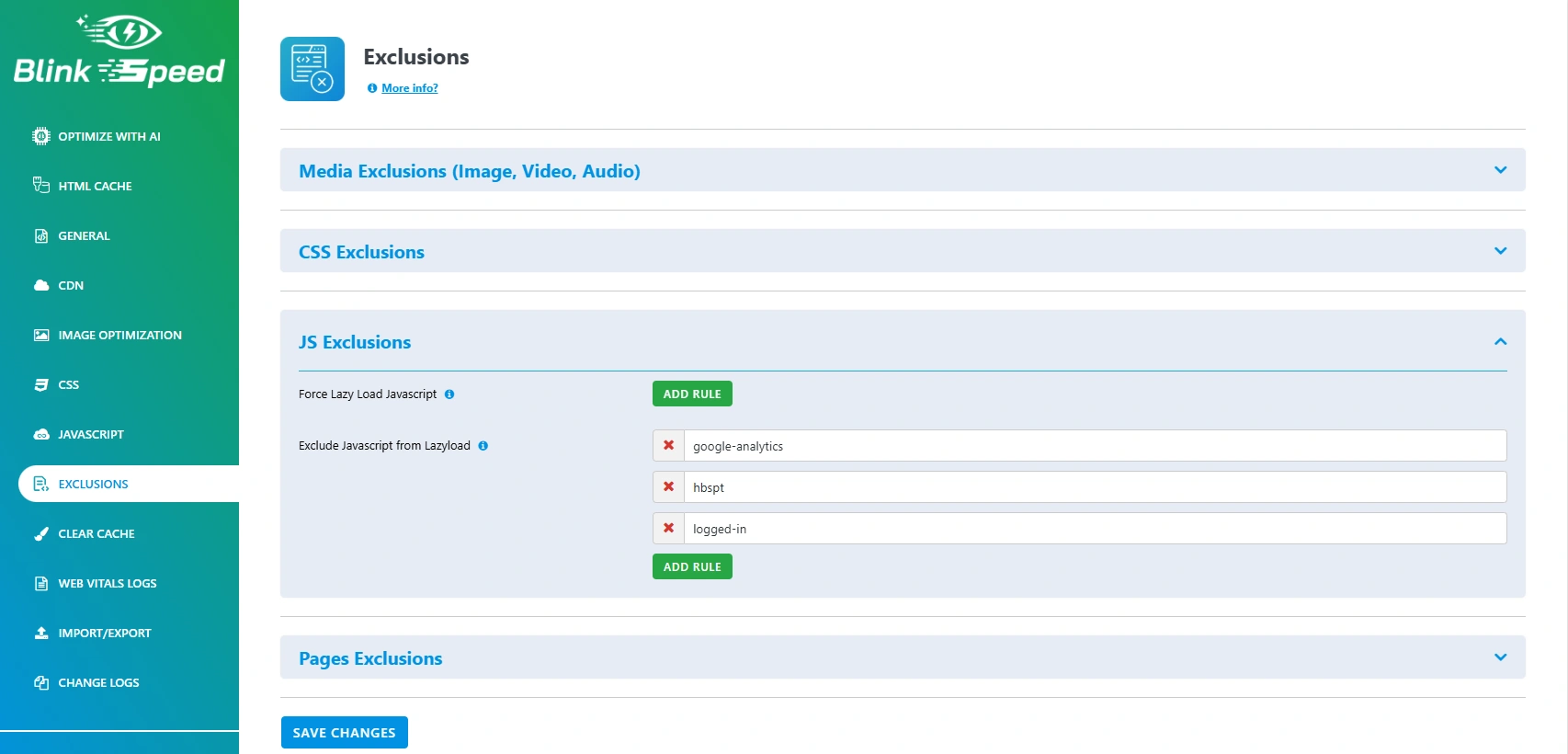
The Exclusions tab contains three JavaScript-specific controls that give you granular override capability for scripts that cannot be handled by the default lazy loading pipeline.
Force Lazy Load JavaScript
This setting targets inline <script> blocks that BlinkSpeed’s automatic detection would normally leave undeferred. By default, BlinkSpeed is conservative – it skips deferred loading for inline scripts that contain jQuery selectors, DOMContentLoaded listeners, or WordPress-specific globals like wp.i18n, since these often need to execute immediately.
Force Lazy Load JavaScript lets you override that conservatism for specific scripts. Enter a matching string from an inline script’s content, and BlinkSpeed will assign it type=”lazyExJs” – a special type that queues it for execution on the first user interaction, separately from the main lazyJs batch.
Use this for inline analytics configurations, marketing scripts, or custom tracking code that you know does not need to run before user interaction.
Exclude JavaScript from Lazyload
This is the most important exclusion setting and the first place to look when lazy loading causes broken functionality. Exclude JavaScript from Lazyload accepts matching strings from script URLs or inline script content and supports four modifier keywords that control exactly how each exclusion is handled.
No modifier (standard exclusion): The script is loaded normally at its original position in the HTML, bypassing all deferred loading. Use this for scripts that absolutely must execute during page parsing – certain checkout scripts, payment gateway initialisation, or scripts that other scripts depend on.
Example:
| Stripe.js |
defer modifier: Append the word defer after the script identifier in the exclusion field. BlinkSpeed removes the script from the lazy-load queue and instead adds the standard HTML defer attribute to its tag. Deferred scripts download in parallel with HTML parsing and execute after parsing is complete, but before the DOMContentLoaded event. This is a lighter-touch option that still prevents render-blocking without the aggressive delay that lazy loading introduces.
Example:
| themes/yourtheme/assets/js/main.js defer |
full modifier: Append full after the identifier. The script is completely excluded from all BlinkSpeed processing – no minification, no path rewriting, no lazy loading. The original tag is preserved exactly as-is. Use this for scripts where any modification causes breakage.
Example:
| plugins/some-map-plugin/js/map-loader.js full |
sameurl modifier: Append sameurl after the identifier. BlinkSpeed processes the script (minification still applies) but preserves the original URL path rather than rewriting it to the cache directory. Useful for scripts that use their own URL as a reference point to locate adjacent files.
Example:
| plugins/custom-fonts/js/font-loader.js sameurl |
This four-mode exclusion system gives you precise control without having to choose between “fully optimised” and “completely excluded.” In most cases, the defer modifier is the right middle ground for scripts that cannot tolerate the interaction-triggered delay but should not block rendering either.
Side-by-Side Comparison
| What you type | Minified? | Path rewritten? | Lazy loaded? | When it runs |
|---|---|---|---|---|
| script-name.js | Yes | Yes | No | Immediately, at original position |
| script-name.js defer | Yes | Yes | No | After HTML parsing, before DOMContentLoaded |
| script-name.js full | No | No | No | Immediately, original tag untouched |
| script-name.js sameurl | Yes | No (original URL kept) | Yes | On user interaction (lazy loaded) |
How to Identify Which Modifier You Need
If a script is causing broken functionality after enabling lazy loading, work through this decision tree:
Step 1 – Does the feature break only when the script is lazy loaded (delayed until interaction)? If yes, try the “defer” modifier first. This removes the interaction delay while still keeping the script non-blocking.
Step 2 – Does it still break with defer? If yes, try the “standard exclusion” (no modifier). The script will load immediately at its original HTML position.
Step 3 – Does it still break even with standard exclusion? This usually means minification is the problem. Try the “full” modifier to bypass all processing.
Step 4 – Does the script work fine when lazy loaded but only produces wrong paths or missing resources? Use the “sameurl” modifier. The script runs at the right time (on user interaction) but keeps its original URL, so its internal relative path references stay valid.
This four-step flow resolves almost every JavaScript conflict without needing to disable BlinkSpeed’s optimisation on entire pages.
Exclude Pages from JavaScript Optimization
This setting bypasses the entire JavaScript optimization pipeline for specific pages or URL patterns. Enter a URL or partial URL, and BlinkSpeed will serve those pages with unmodified script tags.
Common use cases include:
- WooCommerce checkout and payment pages where script timing is critical
- Membership login pages with real-time validation
- Admin-adjacent frontend pages with complex scripting requirements
- Landing pages with embedded third-party form or booking scripts that conflict with lazy loading
Enter the partial URL or slug, and BlinkSpeed will match it against the current request URL before deciding whether to apply JS optimisation.
How BlinkSpeed Handles jQuery Compatibility
One of the most common concerns with aggressive script optimisation is jQuery compatibility. Many WordPress plugins depend on jQuery being available before their own scripts execute, and delaying jQuery itself can cause cascading failures across the site.
BlinkSpeed’s source code includes specific safeguards for this. When minifying and combining scripts, the plugin checks whether any file contains jQuery.holdReady() – a function used to intentionally delay jQuery’s ready event. If holdReady is detected, that file’s content is not modified by BlinkSpeed’s standard JS transformation functions, preserving the intended timing behaviour.
Additionally, when BlinkSpeed applies its standard JS transforms (replacing document.readyState references, adjusting event listener strings to work within the lazy-load lifecycle), it skips any file that contains holdReady, ensuring jQuery-dependent plugin code continues to function correctly even when the overall page is using delayed script loading.
How These Settings Work Together
A well-configured BlinkSpeed JavaScript setup combines all of the above:
- Enable JavaScript Optimization is on – every script gets minified and cached
- Lazyload JavaScript is set to Yes – all scripts defer until user interaction, eliminating render-blocking and improving TBT and FCP
- Fix INP Issues is on – preconnect hints warm up third-party connections before scripts are needed
- Exclude JavaScript from Lazyload protects any scripts that genuinely need normal loading, using defer where possible rather than full exclusion
- Load Inline JavaScript as URL moves large inline blocks to cached external files, reducing HTML size and enabling browser caching
The result is a page that renders its visible content immediately, establishes connections to external script domains early, and executes all JavaScript only after the user signals intent to interact – the optimal pattern for Core Web Vitals and real-world perceived performance.
Common Mistakes and How to Avoid Them
Excluding too many scripts
When something breaks after enabling lazy loading, the instinct is to add the affected script to the exclusion list. This is sometimes correct, but often the better fix is to use the defer modifier rather than a full exclusion. Full exclusions restore render-blocking behaviour; defer maintains the non-blocking benefit while preserving execution order relative to DOMContentLoaded.
Not clearing cache after changing settings
BlinkSpeed caches processed JS files using a random key that changes when you clear the cache. After any change to your JavaScript settings – adding an exclusion, switching the lazy load mode, enabling inline-to-URL conversion – you must purge the BlinkSpeed cache for the new settings to take effect on cached pages.
Use the admin bar quick-access menu or navigate to BlinkSpeed → Cache → Clear JS/CSS Cache & Clear HTML Cache.
Delay JavaScript on pages with above-the-fold interactivity
If your site’s homepage has a form, search box, accordion, or interactive element visible before scrolling, delaying all JavaScript until user interaction can create a brief window where those elements are unresponsive on first load. Identify the scripts powering above-the-fold interactivity and exclude them with the defer modifier so they execute as soon as parsing is complete without blocking rendering.
Ignoring inline scripts
The Load Inline Javascript as URL feature is commonly overlooked, but inline scripts can represent a meaningful chunk of page weight on plugin-heavy WordPress sites. Check your page source for large <script> blocks without src attributes – configuration objects, analytics setup, and schema markup generators are common culprits.
Converting these to external files via BlinkSpeed’s inline-to-URL setting reduces HTML size and makes those scripts cacheable by the browser.
Settings Reference Summary
| Setting | Location | What It Does |
|---|---|---|
| Enable JavaScript Optimization | JS tab | Master toggle – activates minify JS and lazy loading |
| Lazyload Javascript | JS tab | Yes = delay JavaScript until user interaction; No = normal load |
| Load Inline JavaScript as URL | JS tab | Converts inline scripts to cached external files |
| Fix INP Issues | General tab | Adds preconnect hints for external script domains |
| Force Lazy Load JavaScript | Exclusions tab | Forces specific inline scripts into the lazy load queue |
| Exclude JavaScript from Lazyload | Exclusions tab | Removes scripts from lazy loading with defer/full/sameurl modes |
| Exclude Pages from JS Optimization | Exclusions tab | Bypasses all JS optimization for specified page URLs |
Frequently Asked Questions Related to BlinkSpeed JavaScript Optimization
Q1. What is the difference between defer JS and delay JavaScript in BlinkSpeed?
Defer JS (using the HTML defer attribute) downloads scripts in parallel with HTML parsing and executes them after parsing finishes – they still execute on every page load, just without blocking rendering. Delay JavaScript (BlinkSpeed’s lazy load with type=”lazyJs”) goes further: scripts are not downloaded or executed at all until the user interacts with the page.
Delay JavaScript is more aggressive and produces better TBT scores, but requires more careful exclusion management. BlinkSpeed lets you apply either approach per-script through the Exclude JavaScript from Lazyload setting.
Q2. Does minify JS apply to external CDN-hosted scripts?
No. BlinkSpeed’s minification and caching pipeline only processes scripts that are hosted on your own server – files that exist in your WordPress installation’s document root. External scripts from CDNs, Google, Facebook, or other third-party domains are not downloaded and re-cached by BlinkSpeed.
However, when Fix INP Issues is enabled, BlinkSpeed does add preconnect hints for those external domains to speed up their connection setup.
Q3. How does BlinkSpeed avoid breaking jQuery plugins when script optimization is on?
BlinkSpeed checks for jQuery.holdReady() in any script before applying its standard JS transforms. If the function is detected, the file’s content is not modified by the transformation that adjusts document.readyState references, preserving the original timing intentions. Additionally, the lazy-load system loads scripts in batch after user interaction, which generally preserves the relative execution order that jQuery-dependent plugins expect.
Q4. Why do I need to add rules to “Force Lazy Load Javascript” if lazy loading is already enabled?
BlinkSpeed’s default lazy loading targets external .js files. For inline <script> blocks, the plugin is deliberately conservative and only defers specific patterns it is confident about. The Force Lazy Load Javascript setting gives you a way to explicitly opt specific inline scripts into the deferred loading queue when you know they are safe to delay.
It is an override for BlinkSpeed’s otherwise cautious approach to inline script handling.
Q5. How do I know if my scripts are being lazy loaded correctly?
Open your browser’s DevTools, go to the Elements panel, and search the HTML source for type=”lazyJs”. If BlinkSpeed’s lazy loading is active, you should see your script tags with this type attribute before any user interaction. After clicking anywhere on the page, inspect the Network tab and filter by “Script” – you should see the JS files beginning to load at that point rather than during the initial page load.
Q6. Does the script optimization work on mobile and desktop differently?
The script loading trigger differs by device. On desktop, scripts fire on the first click event or when the user scrolls 200 pixels down the page, whichever comes first. On mobile, the trigger is a touchstart event. The minification, caching, and exclusion rules apply identically across both device types. BlinkSpeed’s cache also stores separate cached files for mobile and desktop to account for any differences in page output between the two.