BlinkSpeed is a comprehensive WordPress performance plugin that minifies CSS, defers JavaScript, compresses HTML pages, converts images to WebP, and serves cached pages at the server level. For the large majority of pages and assets on a typical WordPress site, these advanced optimization settings work silently in the background without any human intervention needed. But “the majority” is never “all.”
Some pages, scripts, stylesheets, and media files need to load in their original, untouched form. A WooCommerce checkout page that depends on a specific JavaScript initialization sequence, a third-party chat widget with inline styles that break under minification, or a custom slider that conflicts with combined CSS these are exactly the situations that BlinkSpeed’s dedicated Exclusions panel was designed to handle.
WordPress exclusions inside BlinkSpeed give you surgical control. You tell the plugin precisely which resources to leave untouched while letting everything else benefit from full optimization. The result is a site that is both fast and fully functional with no broken layouts, no white screens, no plugin conflict chaos.
Knowing when and how to use BlinkSpeed exclusions is what separates a professionally optimized WordPress site from a half-working one. They are not a sign of plugin failure. They are an intentional feature of the advanced optimization settings that puts you in control of exactly how aggressively the plugin touches your assets.
In this guide you will learn how every exclusion type inside BlinkSpeed works, how to correctly exclude CSS JS files that cause visual or functional issues, how page exclusions protect your most sensitive URLs, and how to use the exclusion system as a reliable plugin conflict fix all without sacrificing a single point of PageSpeed score on the pages that matter most.
When Should You Use WordPress Exclusions?
Before diving into the mechanics, it is worth understanding the triggers that tell you WordPress exclusions are necessary. Not every visual glitch or functional problem requires an exclusion; sometimes a full cache purge resolves the issue. But certain signals are clear indicators that a targeted exclusion rule needs to be added through BlinkSpeed’s advanced optimization settings.
The checkout or cart page breaking is one of the most common triggers. Minified or combined JavaScript disrupts WooCommerce, Easy Digital Downloads, or any other e-commerce checkout flow. Adding page exclusions for those URLs is the standard plugin conflict fix in this scenario. A second common trigger is a layout that looks visually wrong after optimization is enabled. Combined CSS sometimes strips a vendor prefix or an @import rule that a theme depends on. Using BlinkSpeed’s option to exclude CSS JS files belonging to that theme component restores the layout immediately.
Login pages, account dashboards, and other session-aware pages should never be HTML-cached. Dynamic page exclusions guarantee these URLs are always served fresh from PHP, preventing stale data from reaching logged-in users. Third-party widgets such as live chat tools, booking calendars, and payment iframes often embed their own inline scripts that depend on synchronous execution. Force-lazy-load rules or excluding those scripts from JS optimization are the go-to plugin conflict fix in these cases.
Hero images and above-the-fold banners represent another category where WordPress exclusions become important for performance rather than compatibility. Applying lazy loading to your LCP image hurts Core Web Vitals scores. BlinkSpeed’s media exclusion rules let you pull that specific image out of lazy loading while keeping every other image deferred. Page builders like Elementor and Divi, form plugins, and membership systems all ship their own JavaScript and CSS assets. Advanced optimization settings let you exclude those files without disabling BlinkSpeed globally, giving you a clean plugin conflict fix that preserves speed everywhere else.
How to Exclude CSS JS Files From Optimization
The most frequently used exclusion rules in BlinkSpeed are those that let you exclude CSS JS files from minification, combination, or deferred loading. BlinkSpeed processes these assets at the file level using URL pattern matching. You do not need to specify a full path, just a recognizable fragment of the stylesheet or script URL is enough for the plugin to identify and exclude the correct file.
Accessing the CSS Exclusions Panel
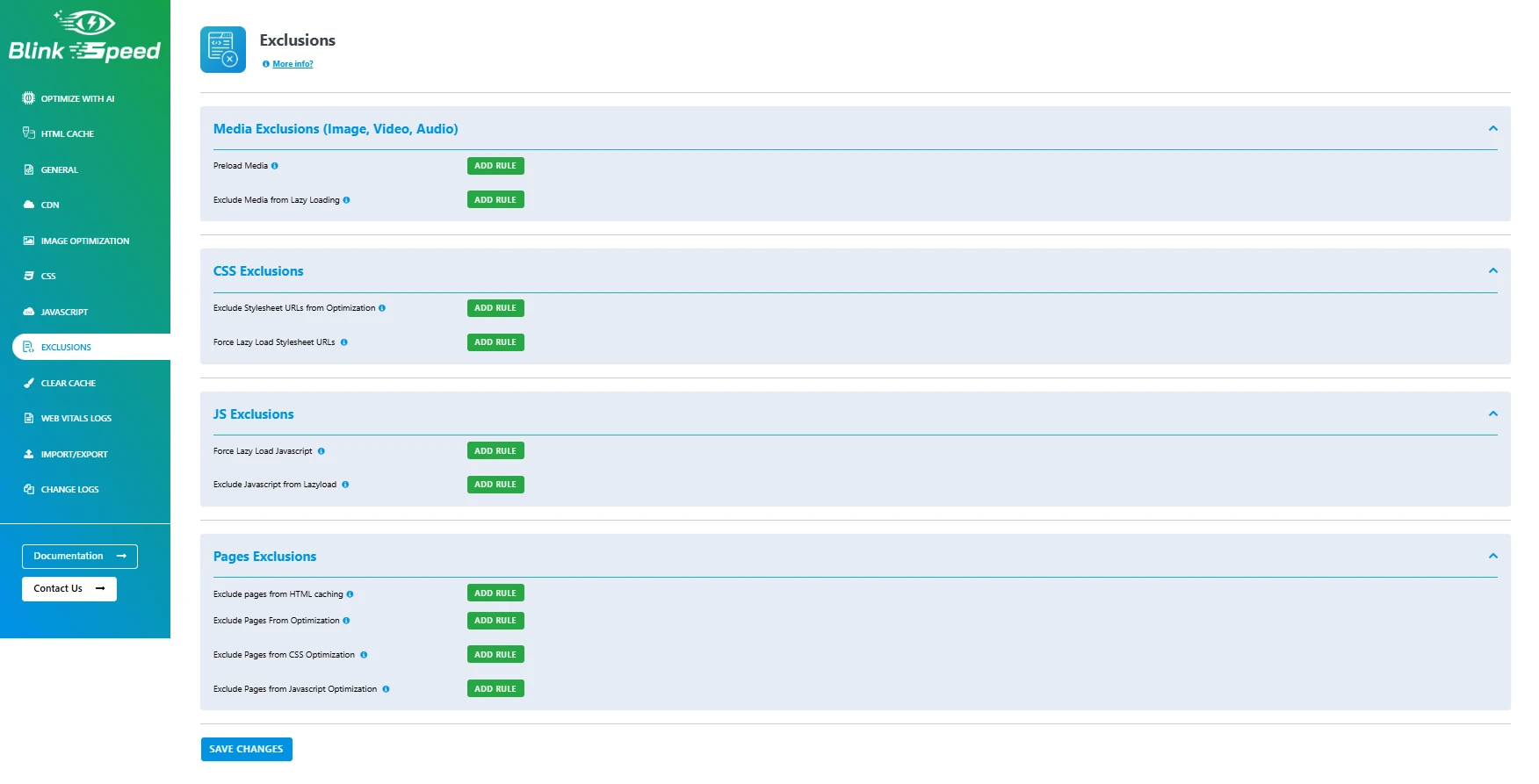
Navigate to BlinkSpeed → Exclusions in your WordPress admin and expand the CSS Exclusions accordion. Two sub-controls form the core of the advanced optimization settings for stylesheets.
The first is Exclude Stylesheet URLs from Optimization. Enter any matching fragment of a CSS file URL here. BlinkSpeed will skip minification, combination, and URL rewriting for any stylesheet whose URL contains this string. This is ideal for third-party CSS that uses proprietary syntax, non-standard at-rules, or complex calc() expressions that break under aggressive minification.
The second is Force Lazy Load Stylesheet URLs. This pushes non-critical stylesheets into a deferred load queue, meaning they load on first user interaction rather than during the critical rendering path. Use this for below-the-fold fonts, widget styles, or feature CSS that is never visible during the initial page view. It is a performance-enhancing WordPress exclusion rather than a compatibility fix: you are not removing the file from optimization, you are changing when it loads.
When you need to exclude CSS JS files, always use the most unique fragment of the URL: a plugin slug, a version folder, or a distinct filename. Overly generic patterns can inadvertently match and exclude far more files than intended, quietly undoing much of the benefit of your advanced optimization settings without any visible warning.
Excluding JavaScript Files: Two Levels of Control
The JS Exclusions section within BlinkSpeed’s advanced optimization settings provides two complementary controls that let you fine-tune which scripts are excluded and in what way.
Force Lazy Load Javascript forces inline JavaScript to load on user interaction rather than at page load. This is appropriate for analytics snippets, chat widgets, cookie consent scripts, and other non-critical trackers that do not affect the visible page render.
Excluding Javascript from Lazyload does the opposite: it removes a JS file from the lazy loading and combination queue entirely, letting it load synchronously in the normal WordPress script order. Use this for jQuery, critical initialization scripts, and payment SDKs where execution order is non-negotiable.
A practical example: if Stripe’s stripe.js breaks when deferred, enter stripe.js in the Exclude Javascript from Lazyload field. BlinkSpeed will load it synchronously while deferring everything else. This is the cleanest plugin conflict fix for payment-related scripts because it targets the single problematic file rather than disabling JS optimization for the whole page.
Common exclusion patterns that cover the most frequent compatibility scenarios include woocommerce/assets/js for WooCommerce scripts, elementor/assets/js for Elementor’s front-end scripts, jquery.min.js to ensure jQuery is never deferred, and stripe.js or paypal/sdk for payment integrations. These patterns entered into the appropriate field in BlinkSpeed’s advanced optimization settings will resolve the majority of plugin conflicts related to JavaScript loading.
Setting Up Page Exclusions in BlinkSpeed
Page exclusions are the broadest type of WordPress exclusions available in BlinkSpeed. Rather than targeting a specific file, they target entire URLs or URL patterns telling the plugin to skip optimization or caching for matching pages entirely. This is essential for dynamic pages, user-specific pages, and pages that generate unique content per session.
Four Page-Level Exclusion Controls
BlinkSpeed provides four distinct page exclusion controls under the Pages Exclusions accordion, each operating at a different level of the optimization stack.
Exclude Pages from HTML Caching ensures any URL fragment or slug entered here is permanently skipped by BlinkSpeed’s HTML caching engine. The page will always be served dynamically from PHP rather than from a cached file. Use this for checkout flows, account dashboards, and any page that displays user-specific data. WooCommerce generates dynamic cart tokens, nonces, and session data per user. If BlinkSpeed’s HTML cache serves a stale version of the checkout page to a new visitor, the nonce will expire and the order will fail. Always add /cart/, /checkout/, and /my-account/ to this field as a baseline this is standard practice under any advanced optimization settings configuration for e-commerce sites.
Exclude Pages From Optimization is a full bypass for the entire BlinkSpeed optimization pipeline. Pages matching this rule receive no CSS combination, no JS deferral, no minification, and no HTML processing. Use it sparingly only for pages where every single optimization breaks something simultaneously. A common example is a landing page built with a custom page builder that manages its own asset loading pipeline and conflicts with BlinkSpeed’s processing at every level.
Exclude Pages from CSS Optimization is a more surgical WordPress exclusion. CSS on matching pages will not be combined or minified, but all other optimizations remain fully active. This is useful when a page uses a CSS animation library that breaks under combination but whose JavaScript is otherwise safe to defer and minify.
Exclude Pages from JavaScript Optimization is the JS equivalent. Pages matching this rule skip JS minification and combination while still benefiting from HTML caching, image optimization, and CSS improvements. This is typically the first page exclusion to try when a specific page’s interactive functionality breaks after enabling BlinkSpeed, because it narrows the problem to JavaScript without disabling every other performance gain.
How to Add Page Exclusions in BlinkSpeed
Go to BlinkSpeed → Exclusions and expand the Pages Exclusions section. Click Add Rule next to the relevant exclusion type. Enter the slug or partial URL of the page for example /checkout/, /cart/, or /my-account/. Click Save Changes at the bottom of the Exclusions panel. Then purge all caches from the BlinkSpeed admin bar menu and test the excluded page in a private browser window to confirm normal behaviour.
BlinkSpeed’s page exclusions use partial string matching. Entering /checkout/ will match the root checkout URL, any step parameter appended to it, and any child paths beneath it. You do not need to enumerate every variation of a URL; a single slug covering the parent path is sufficient for most page exclusions.
Media and Lazy Load Exclusions
BlinkSpeed automatically applies lazy loading to images, iframes, videos, and audio elements deferring their load until they approach the viewport. For below-the-fold content this is excellent, but applying it to the Largest Contentful Paint element actively harms Core Web Vitals when that element is an above-the-fold hero image or primary banner. The Media Exclusions section within BlinkSpeed’s advanced optimization settings provides two controls for fine-tuning lazy loading behaviour as part of your overall WordPress exclusions strategy.
Preload Media
Enter the URL of any critical resource here a hero image, a web font, or a video poster and BlinkSpeed injects a link rel=”preload” tag for it in the document head. This is not technically an exclusion from optimization; it is a performance-positive addition that ensures the browser fetches the resource at the highest priority before the main render begins. Using this field for your LCP image, combined with excluding it from lazy loading, is one of the highest-impact advanced optimization settings adjustments you can make for Google PageSpeed scores.
Exclude Media from Lazy Loading
Enter any matching text found within an image, iframe, video, or audio tag. This can be a CSS class name, an element ID, a partial URL, or an alt attribute value. BlinkSpeed will skip lazy loading for any media element whose tag markup contains this string. Common WordPress exclusions in this category include the class name of the hero image such as hero-image or hero-banner, a custom class you apply to above-the-fold elements such as above-fold, a fragment of the filename for a critical brand image, or the logo identifier to ensure the site logo never lazy-loads.
If your site’s LCP image is being lazy-loaded by BlinkSpeed and you have not added a media exclusion for it, Google PageSpeed will penalize your performance score. Fixing this particular WordPress exclusion should take priority over most other advanced optimization settings adjustments, because the LCP metric carries significant weight in both Core Web Vitals assessments and Google Search ranking signals.
Using Exclusions as a Plugin Conflict Fix
One of the most practical applications of BlinkSpeed’s exclusion system is diagnosing and resolving plugin conflicts. When another WordPress plugin stops working correctly after BlinkSpeed is activated, the instinctive response is to deactivate BlinkSpeed entirely. But that discards all your performance gains across the entire site. A far better approach is to use targeted WordPress exclusions as your plugin conflict fix, isolating exactly which optimization is causing the incompatibility.
A Systematic Approach to Plugin Conflict Fixing
Start by identifying the broken page and confirming the issue is visible to regular visitors in a private browser window where no admin cookies are active. This rules out admin-side rendering differences before you begin making changes.
Next, try a JS page exclusion first. Go to BlinkSpeed advanced optimization settings → Exclusions → Pages Exclusions and add the broken page’s slug under Exclude Pages from Javascript Optimization. JS deferral and combination cause the majority of plugin conflicts. Test in a private window after clearing all caches. If the issue resolves, you know JavaScript optimization is the cause and can now narrow it further to a file-level exclusion. If the page is still broken after excluding JS optimization, try CSS. Add the same slug to Exclude Pages from CSS Optimization. Many visual glitches caused by combined or minified CSS resolve at this step.
Once you have identified which type of optimization is causing the plugin conflict, shift from a broad page exclusion to a file-level approach. Exclude CSS JS files by entering the specific filename or plugin folder fragment into the relevant file-level exclusion field. This preserves optimization on every other asset loaded by that page while neutralizing the one problematic file. It is a more precise plugin conflict fix and a better long-term advanced optimization setting than a full page exclusion.
After each change, purge all caches using BlinkSpeed’s admin bar Clear All Cache option and reload the page with a hard refresh to ensure you are viewing the newly served content and not a browser-cached version. Gravity Forms and Contact Form 7 both load conditional scripts that conflict with JS combination. WPBakery and Divi frequently ship CSS with non-standard syntax that breaks under minification. Elementor’s widgets rely on a specific script initialization order that JS deferral disrupts. In all three cases the correct WordPress exclusion is to exclude CSS JS files for that specific plugin, not to disable optimization globally.
Advanced Optimization Settings: Rules and Patterns
BlinkSpeed’s exclusion engine operates on substring matching. If the string you enter appears anywhere within the asset URL or tag markup, the exclusion applies. Understanding this opens up powerful pattern-based WordPress exclusions that can cover entire plugin asset directories with a single rule in the advanced optimization settings panel.
For WooCommerce JavaScript, entering woocommerce/assets/js in the Exclude Javascript from Lazyload field covers every WooCommerce script in a single rule. For Elementor’s editor environment, adding /?elementor-preview= to the full page exclusion field ensures the live editor is never touched by optimization. To keep the Google Fonts stylesheet from being combined with local stylesheets, entering fonts.googleapis.com in the Exclude Stylesheet URLs field is sufficient. For a hero image excluded from lazy loading, entering the image’s CSS class such as hero-banner or site-logo covers every instance of that image across all pages simultaneously.
Using Multiple Rules Together
Advanced optimization settings frequently require combining multiple exclusion types simultaneously. Consider a WooCommerce store running Elementor on product pages. You might exclude CSS JS files belonging to WooCommerce’s payment gateway, add page exclusions for /checkout/ and /cart/ from HTML caching, exclude Elementor’s preview URL from full optimization, and force-lazy-load the slider CSS on the homepage all at the same time. BlinkSpeed evaluates each rule independently, so multiple WordPress exclusions stack without interfering with each other.
Exclusion Checklist Before Going Live
Whether you are launching a new site or enabling BlinkSpeed on an existing one, use this checklist to make sure your advanced optimization settings and WordPress exclusions are properly configured before traffic arrives. Add e-commerce page exclusions first. Enter /cart/, /checkout/, /my-account/, and /order-received/ into Exclude from HTML Caching and Exclude Pages From Optimization if you are running WooCommerce or any other e-commerce plugin. This is the single most important plugin conflict fix for transactional sites and prevents the most damaging type of caching-related breakage.
Review your LCP image using Google PageSpeed Insights or Chrome’s Performance panel to identify the Largest Contentful Paint element. If it is an image, add its class or filename to Exclude Media from Lazy Loading. Optionally also add it to the Preload Media field to give it maximum load priority. Test every interactive form in a private browser window after BlinkSpeed is fully active. Contact forms, booking widgets, multi-step calculators, and login forms all depend on inline JavaScript. Use the Force Lazy Load or exclude CSS JS files controls under JS Exclusions if any form submission fails or behaves unexpectedly.
Verify every third-party widget loads and triggers correctly. Live chat tools, pop-up managers, and cookie consent banners often embed proprietary scripts that assume synchronous loading. A file-level JS exclusion is the appropriate plugin conflict fix when a widget is non-functional after optimization is enabled.
Run a final PageSpeed Insights audit from a clean browser after setting all your page exclusions and file-level WordPress exclusions. Confirm that scores have improved and that the pages you excluded still perform within an acceptable range for their type.
Frequently Asked Questions
Q1. How do I know which CSS or JS file to exclude in BlinkSpeed?
The fastest way to identify which file to exclude CSS JS files from is to open Chrome DevTools, go to the Console tab, and reload the broken page. JavaScript errors typically reference the originating file by name. For CSS issues, inspect the broken element in the Styles panel and trace the missing or malformed rule back to its source stylesheet.
Once you have the original filename or plugin folder, enter that as the pattern in BlinkSpeed’s advanced optimization settings exclusion field.
Q2. Will adding page exclusions hurt my PageSpeed score?
Adding page exclusions to transactional pages like /checkout/ or /my-account/ will not negatively affect your PageSpeed score because Google’s performance audits focus on publicly accessible, non-session-specific URLs. For publicly visible pages, only use WordPress exclusions where absolutely necessary as a plugin conflict fix.
Prefer file-level exclusions over full page exclusions to preserve as much optimization as possible on pages that do appear in PageSpeed reports.
Q3. What is the difference between excluding a file and excluding a page in BlinkSpeed?
When you exclude CSS JS files at the file level, only that specific stylesheet or script is left unoptimized across every page that loads it. Every other asset on every other page continues to receive full BlinkSpeed optimization. When you add page exclusions, every asset on that specific URL is excluded from a particular type of optimization.
File-level exclusions are more surgical and should always be tried first. Page exclusions are broader and best reserved for pages where multiple assets are causing simultaneous issues.
Q4. My WooCommerce checkout is broken after enabling BlinkSpeed. What should I do?
This is one of the most common plugin conflict scenarios with performance plugins. Go to BlinkSpeed → Exclusions → Pages Exclusions and add /checkout/ and /cart/ to both Exclude pages from HTML caching and Exclude Pages from Javascript Optimization.
Then add WooCommerce’s payment gateway scripts identifiable by the pattern woocommerce/assets/js to the Exclude Javascript from Lazyload field under JS Exclusions. Purge all caches and test in a private browser window. This combination of page exclusions and file-level WordPress exclusions resolves the overwhelming majority of WooCommerce conflicts.
Q5. Can I exclude a specific image from lazy loading in BlinkSpeed?
Yes. Navigate to BlinkSpeed → Exclusions → Media Exclusions and expand the section. In the Exclude Media from Lazy Loading field, enter any text that uniquely identifies your image, its CSS class, a portion of its filename, its alt attribute value, or its element ID.
BlinkSpeed matches this string against the full image tag and excludes any matching media element from lazy loading. This is the recommended WordPress exclusion for your LCP image and should be one of the first advanced optimization settings you review on any new installation.
Q6. Do BlinkSpeed’s WordPress exclusions apply to the mobile version of my site too?
Yes. BlinkSpeed maintains separate cache files for desktop and mobile using distinct file extensions internally, but exclusion rules are applied universally across all device types. When you exclude CSS JS files or set page exclusions, those rules are enforced for both desktop and mobile visitors.
If a specific issue only occurs on mobile, use Chrome’s device emulation mode to identify the mobile-specific asset and add a targeted exclusion for it through BlinkSpeed’s advanced optimization settings.
Q7. How do I use the Force Lazy Load Stylesheet setting, and how is it different from excluding a stylesheet?
Force Lazy Load Stylesheet URLs push a CSS file into a deferred loading queue so it loads after the initial render on first user interaction. This is a performance-enhancing WordPress exclusion: you are not removing the file from optimization, you are changing when it loads.
Use it for non-critical styles like sidebar widget CSS or modal overlays. Excluding a stylesheet from optimization entirely keeps it loading at normal timing but prevents BlinkSpeed from minifying or combining it. Use the file exclusion approach when a stylesheet’s content breaks under optimization, and use Force Lazy Load when the stylesheet content is fine but you want to defer it purely for performance.