Every millisecond of loading time costs you visitors, conversions, and search rankings. Caching is one of the most powerful tools you have to eliminate that delay – but only when it is configured correctly, cleared at the right time, and rebuilt intelligently. Get any part of this wrong, and you end up serving outdated content, missing performance gains, or fighting a plugin that appears broken when it is actually just stale cache causing the issue.
This guide covers everything inside BlinkSpeed’s cache system: what each setting controls, when to purge cache vs clear cache WordPress-wide, how the preload cache system rebuilds pages automatically, and how hosted environment purging works across more than a dozen platforms.
How BlinkSpeed Caching Works
When a visitor lands on a page on your WordPress site, PHP executes hundreds of database queries, template functions, and plugin hooks before sending a single byte of HTML to the browser. This process typically takes 300ms to over a second on a busy server.
BlinkSpeed bypasses this entirely. The first time a page is requested, it processes and saves a complete static HTML file to disk at wp-content/cache/bs-cache/. Every subsequent visitor receives that static file directly; no PHP, no database, no plugins executed. The response time drops to single-digit milliseconds.
The cache system also stores separate files for different asset types – CSS, JavaScript, and critical CSS all have their own cache directories – and maintains separate versions for desktop and mobile visitors (.mob.html, .mob.css, .mob.js). This ensures mobile-optimised output does not bleed into desktop delivery and vice versa.
Understanding this structure is key to knowing when you need to purge cache, clear cache, or trigger a cache refresh across different parts of the system.
Navigating BlinkSpeed’s Cache Settings
BlinkSpeed has two cache-related admin panels:
BlinkSpeed → HTML Caches – Controls how caching is generated: expiry time, delivery method, preload behaviour, browser caching, GZIP, and query parameter handling. This is where you configure how the cache is built.
BlinkSpeed → Cache – Contains the manual deletion buttons to immediately clear cache for HTML, JS/CSS, and critical CSS. This is where you trigger manual cache refreshes.
The admin bar at the top of every page also provides quick-access cache purge controls so you can clear cache WordPress-wide without entering the plugin settings.
HTML Caching Settings Explained
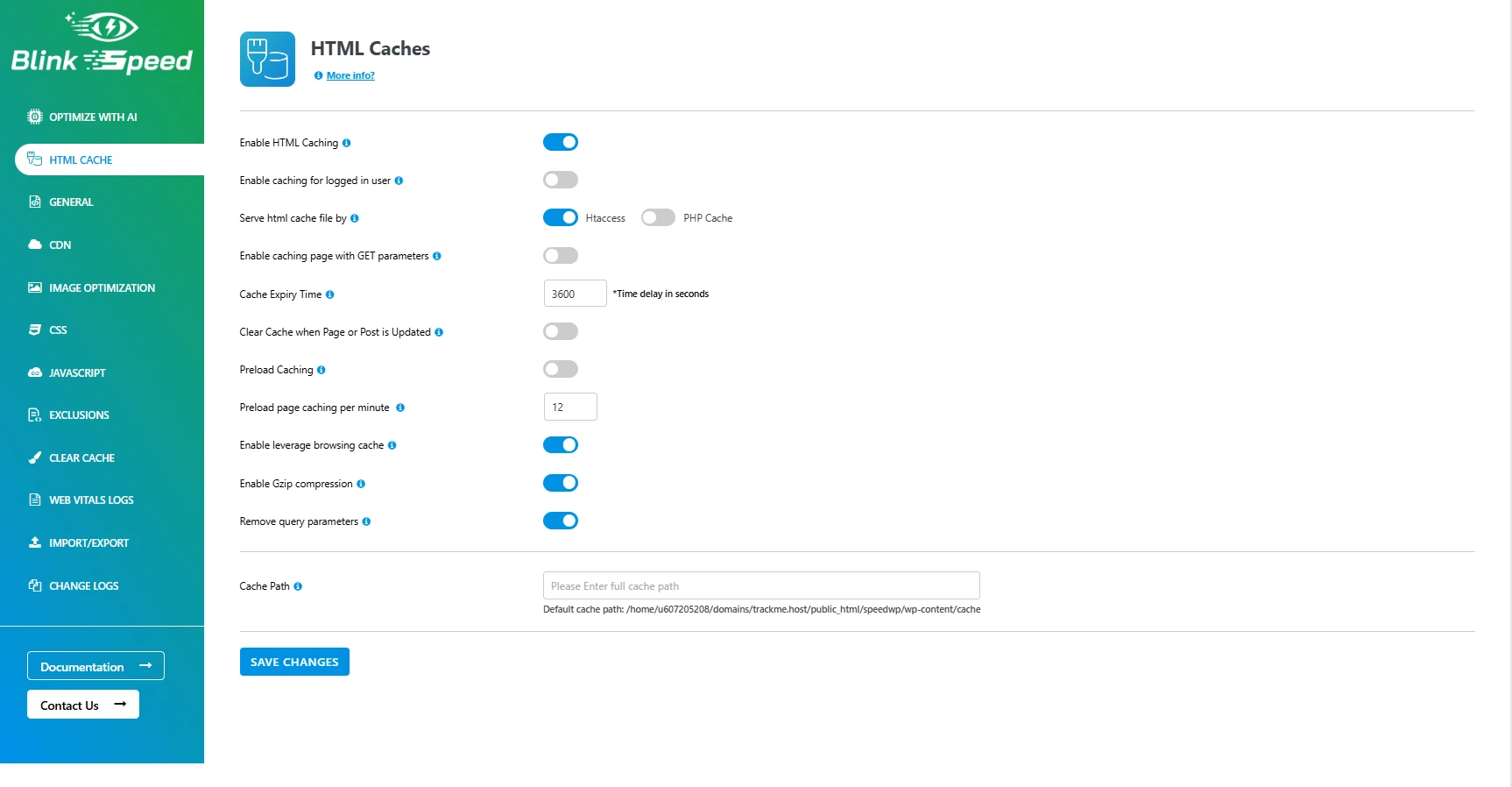
Enable HTML Caching
This master toggle activates the static HTML page cache. When turned on, every publicly accessible page on your site is eligible to be cached as a static file. When turned off, WordPress processes every request dynamically, ignoring all cached files.
Leave this on at all times in production. There is rarely a reason to disable it unless you are actively debugging a conflict or working on live content where you need to see real-time changes on every page load.
Enable Caching for Logged-In Users
By default, BlinkSpeed skips the cache entirely for logged-in users. This protects account-specific content – dashboard data, WooCommerce cart information, personalised greetings – from leaking into cached pages that other visitors might see.
Enabling this setting extends the cache to logged-in users. It is appropriate for membership sites where authenticated pages are publicly readable in nature, or for admin teams who want to test cached output. For most WooCommerce or membership sites, leave this disabled to prevent personalised content from appearing in shared cached pages.
Serve HTML Cache File By
This dropdown controls the mechanism BlinkSpeed uses to deliver cached HTML files to incoming visitors. Two options are available:
Htaccess – BlinkSpeed writes Apache .htaccess rules that intercept requests before PHP boots. When a matching static cache file exists, Apache serves it directly. This is the fastest possible delivery method because PHP never loads at all, but it requires an Apache server with mod_rewrite enabled. This is the default and recommended setting for most shared and managed hosting environments.
PHP Cache (Advanced Cache) – BlinkSpeed installs a advanced-cache.php drop-in file and sets WP_CACHE = true in wp-config.php. WordPress loads this file very early in its boot sequence, before plugins, themes, or database connections. If a cache file exists, it is served and PHP exits immediately. Choose this option on Nginx servers or any environment where .htaccess rules are not supported.
Changing this setting rewrites your .htaccess file or installs/removes the advanced cache drop-in respectively. After switching, purge the full cache so new files are generated under the correct delivery mechanism.
Enable Caching for Pages with GET Parameters
URLs with query strings – like yoursite.com/shop/?orderby=price or yoursite.com/blog/?paged=2 – are typically excluded from page caches because each unique query string produces a different page. Enabling this setting instructs BlinkSpeed to cache pages regardless of their query parameters, creating separate cache files for each unique URL variant.
This can dramatically improve performance on paginated archives and filtered shop pages. The tradeoff is increased cache storage since every unique query string URL generates its own cached file. Enable it if your site has heavy traffic to filtered or paginated pages and your server has adequate disk space.
Cache Expiry Time
This field sets the maximum age of a cached HTML page in seconds. The default value is 3600, which equals one hour. After this duration, the next request to that URL regenerates the cached file from a fresh PHP render.
Common configurations:
| Content Type | Recommended Expiry |
|---|---|
| Frequently updated news/blog | 1800 (30 minutes) |
| Standard business site (Blinkspeed Default) | 3600 (1 hour) |
| Product pages with stable inventory | 7200–14400 (2–4 hours) |
| Static pages (About, Contact) | 86400 (24 hours) |
Lowering the value creates a more frequent cache refresh but increases server load as pages regenerate more often. Raising it reduces server load but risks serving outdated content for longer after changes. If you have the preload cache system enabled (covered below), a longer expiry with automatic preloading is usually the optimal combination.
Clear Cache When Page or Post Is Updated
When enabled, BlinkSpeed hooks into WordPress’s save_post action and automatically triggers a cache refresh for any page or post the moment it is published or updated. The relevant cached HTML file is deleted immediately, and the next visitor triggers a fresh generation.
This setting ensures that content editors never have to manually clear cache WordPress-wide after making changes. A blog post with a corrected typo, an updated product price, or a revised landing page headline becomes live for visitors the instant the editor clicks Update.
Enable this for any site where content changes happen regularly and accuracy of the cached output matters. On very high-traffic sites, consider combining this with the preload cache option so the page is rebuilt in the background rather than waiting for the next live visitor to trigger regeneration.
Preload Caching
Preload cache solves the cold-start problem. Without preloading, every page on your site starts uncached after a clear. The first visitor to each URL triggers a fresh PHP render – which takes full dynamic loading time – and only subsequent visitors see the cached, fast version.
When preload cache is enabled, BlinkSpeed uses its built-in cron system to proactively visit and cache pages in the background. A custom WordPress cron job fires every minute and works through your site’s URL list, requesting each page so it is cached before any real visitor arrives.
The wp_blinkspeed_site_urls database table stores the URL queue. BlinkSpeed populates this table automatically from your sitemap and existing post/page data. The preload system reads URLs from this queue, generates cached files, and marks each URL as complete – running continuously to keep the entire site warm.
This is the difference between a cache that is fast for returning visitors and one that is fast for every visitor, including the first one after a deployment, cache clear, or content update.
Preload Page Caching Per Minute
This numeric input (range 1–12) controls how aggressively the preload system works. The value represents how many pages BlinkSpeed will cache per minute during each cron cycle.
Choosing the right value:
- 1–3 pages/minute – Conservative. Suitable for sites with limited server resources or shared hosting where aggressive background processing could affect foreground request handling.
- 4–8 pages/minute – Balanced. Good for most VPS or managed hosting environments with moderate resources.
- 9–12 pages/minute – Aggressive preloading. Use this for large sites on dedicated or high-resource hosting where speed of cache warmup matters more than background resource conservation.
For a 500-page site preloading at 5 pages per minute, the full site warms up in approximately 100 minutes – less than two hours. Preloading is throttled to avoid overwhelming the server, so it will never attempt to cache dozens of pages simultaneously.
Enable Leverage Browsing Cache
Browser caching tells visitors’ browsers to store static assets locally – CSS files, JavaScript files, images, fonts – so they do not need to download them again on return visits or when navigating between pages.
When this setting is enabled, BlinkSpeed writes Cache-Control and Expires HTTP headers into your .htaccess file. These headers instruct browsers to cache different asset types for varying durations: typically 1 year for images and fonts, 1 month for CSS and JavaScript files.
The practical effect is significant for returning visitors. A visitor who has already browsed your site once and returns the next day will load the page from their local browser cache for the assets they have already downloaded, reducing both page load time and bandwidth consumption.
Enable this setting on any production site. It requires Apache’s mod_headers or mod_expires module, which are available on virtually all hosting environments.
Enable GZIP Compression
GZIP is a server-side compression standard that compresses HTML, CSS, and JavaScript files before sending them to the browser. A typical uncompressed HTML page of 80KB often compresses to under 20KB – a 75% reduction in transfer size.
When this setting is on, BlinkSpeed adds GZIP directives to your .htaccess file. Modern browsers send an Accept-Encoding: gzip header with every request, and the server responds with a compressed version of the file. The browser decompresses it locally, which takes microseconds – far less time than the network transfer of the uncompressed file would have taken.
GZIP compression is one of the easiest wins in web performance. It requires Apache’s mod_deflate module and has no meaningful downsides. Keep it enabled.
Remove Query Parameters
Static assets in WordPress often have version query strings appended to their URLs – for example, /wp-content/themes/mytheme/style.css?ver=6.4.2. These version strings are useful for cache busting during development, but they also prevent browser and proxy caches from caching those assets aggressively since many caching layers treat URLs with query strings as dynamic and uncacheable.
When this setting is enabled, BlinkSpeed strips the ?ver=… and similar query parameters from static asset URLs in the rendered HTML. The cleaned URLs allow browser caching and CDN caching to work more effectively for those assets.
Enable this on production sites unless a specific plugin relies on version strings to force cache refreshes when the file changes.
Cache Path
By default, BlinkSpeed stores all cached files in wp-content/cache/bs-cache/. The Cache Path field lets you specify a custom absolute filesystem path if you need to redirect cache storage to a different directory – for example, a RAM disk, a partition with more space, or a directory outside the web root.
Leave this empty unless you have a specific hosting or storage reason to change it. If you enter a custom path, ensure the directory is writable by the web server user and has sufficient space.
Manual Cache Deletion – The Cache Panel

Delete HTML Cache
This button immediately deletes all static HTML page cache files from the BlinkSpeed cache directory. Cached JS and CSS files, critical CSS, and WebP images are not affected.
When to use it:
- After making theme or template changes that affect page layout or content structure
- After updating plugin output that appears on multiple pages
- After changing site-wide content like menus, headers, or footers
- When a page is showing outdated content and you need it refreshed immediately
After clicking Delete HTML Cache, the next visitor to each page triggers a fresh render that is cached and served to all subsequent visitors. If preload cache is active, the background process will rebuild pages automatically within minutes.
Delete HTML/JS/CSS Cache
This button clears HTML page cache along with all minified and combined JavaScript and CSS cache files. Choosing this option performs a deeper cache refresh across the performance layer.
When to use it:
- After enabling or disabling CSS or JavaScript optimization settings
- After adding or removing plugins that register scripts or stylesheets
- After changing CSS exclusion or JS exclusion rules in the Exclusions tab
- After any change to the Critical CSS, JS Optimization, or CSS Optimization settings
- After updating your theme’s stylesheets or scripts through the theme customizer
This is the correct option after making any changes to BlinkSpeed’s CSS or JS settings. The HTML-only delete would not remove the stale combined JS/CSS files, so pages would still load the old optimised bundles until they expired naturally.
Delete Critical CSS Cache
Critical CSS is the above-the-fold stylesheet extract that BlinkSpeed generates per-page via its cloud API. It is stored separately from the main CSS cache and represents significant API processing time to regenerate.
This button deletes only the critical CSS cache, leaving HTML and JS/CSS caches intact.
When to use it:
- After making visible changes to above-the-fold design elements – hero sections, navigation, headers, banners
- After changing your primary theme stylesheet
- After switching themes or page builder templates
- After adding new above-the-fold content blocks that were not present when critical CSS was last generated
Important: Critical CSS regeneration takes considerably longer than HTML or JS/CSS cache rebuilding because each page’s critical CSS must be extracted individually via the BlinkSpeed cloud API. For a site with 200 pages, regeneration might take 20–40 minutes depending on the preload speed setting. Only delete critical CSS when a layout change makes the existing critical CSS visually incorrect.
The Admin Bar Cache Purge Controls

BlinkSpeed adds a BlinkSpeed menu item to the WordPress admin bar, visible at the top of every page when you are logged in as an administrator. This menu provides quick-access purge controls without requiring you to open the plugin settings:
- Purge All Cache – Clears all BlinkSpeed cache files and simultaneously triggers a purge request to your hosting provider’s server-level cache (Varnish, Redis, or similar). Equivalent to pressing all three Delete buttons in the Cache panel in one click.
- Purge Page Cache – Purges the cache for the specific page you are currently viewing. Useful when you have updated a single post or page and want only that page’s cache refreshed without touching the rest of the site.
These admin bar controls are available on both the frontend and in the WordPress admin dashboard, making them the fastest path to a manual cache refresh during content updates or debugging sessions.
Automatic Cache Purging on Managed Hosting
One of BlinkSpeed’s most significant technical capabilities is its awareness of managed hosting environments. Most managed WordPress hosts run server-level caches – Varnish, Redis, or proprietary caching layers – that sit in front of PHP and serve responses even before WordPress loads. Clearing BlinkSpeed’s own file cache is not enough on these hosts; the hosting provider’s cache layer must also be purged, or visitors continue receiving the host’s cached version of old content.
BlinkSpeed automatically detects your hosting environment and calls the correct purge API for each provider when any cache purge is triggered – whether from the admin bar, the Cache panel, or an automatic post-update purge. No manual configuration is required.
Cache Preloading vs. Cache Purging: Understanding the Difference
These two operations are commonly confused but serve opposite purposes in a performance cache settings workflow.
Purge cache means removing existing cached files so they will be regenerated on the next request. A purge clears stale content but leaves pages temporarily uncached – the next visitor to each URL gets a slower, dynamically rendered response.
Preload cache means proactively generating new cached files before visitors arrive. A preload warms the cache without any visitor triggering a fresh render.
The optimal workflow combines both:
- A content update triggers an automatic cache purge for the affected pages via the save_post hook
- The preload system detects that those URLs are no longer cached and adds them back to the crawl queue
- Within minutes, the pages are re-cached in the background
- Visitors always receive fast cached responses, even immediately after a content update
Without preloading, there is always a window after a purge where the first visitor to each page gets a slower uncached response. With preloading, this window is eliminated.
Performance Cache Settings Reference
| Setting | Location | Recommended Value |
|---|---|---|
| Enable HTML Caching | HTML Caches | On |
| Cache for Logged-In Users | HTML Caches | Off (unless needed) |
| Serve Cache File By | HTML Caches | Htaccess (Apache) / PHP Cache (Nginx) |
| Cache with GET Parameters | HTML Caches | On (for filtered/paginated pages) |
| Cache Expiry Time | HTML Caches | 3600 (adjust per content type) |
| Clear Cache on Post Update | HTML Caches | On |
| Preload Caching | HTML Caches | On |
| Preload Pages Per Minute | HTML Caches | 12 (adjust per server capacity) |
| Leverage Browser Cache | HTML Caches | On |
| GZIP Compression | HTML Caches | On |
| Remove Query Parameters | HTML Caches | On |
When to Clear Cache in Different Scenarios
After Updating WordPress, a Plugin, or Theme
Run Delete HTML/JS/CSS Cache from the Cache panel. Plugin and theme updates can change both page structure (HTML) and asset files (CSS/JS). Clearing only the HTML cache would leave old bundled JS and CSS files being served with updated HTML.
After Changing BlinkSpeed Settings
Always clear cache after saving any BlinkSpeed settings change. The plugin does not automatically regenerate cached files when settings change. If you enabled lazy loading for JavaScript and saved settings, existing cached pages still contain the old script tags until the cache is cleared and pages are regenerated.
After Making Content Changes via the Editor
If Clear Cache When Page or Post Is Updated is enabled, this happens automatically. If it is not enabled, use the admin bar Purge Page Cache control on the page you just edited to trigger an immediate cache refresh for that URL only.
After Changing Menus, Widgets, or Global Elements
Menus, sidebars, footers, and headers appear on every page. Changes to these elements require clearing the HTML cache site-wide since every cached page contains the old version of these global elements.
After Installing a New Plugin That Adds Frontend Output
New plugins often register scripts, stylesheets, or HTML output that was not present when existing cache files were generated. Run Delete HTML/JS/CSS Cache after installing and activating any plugin that affects frontend output.
Summary
BlinkSpeed’s cache system is one of the most complete performance cache settings implementations available for WordPress. Static HTML caching eliminates PHP processing time for every visitor. The dual delivery modes (Htaccess and PHP Cache) ensure compatibility across Apache and Nginx environments.
The automatic post-update purge keeps content accurate without manual intervention. The preload cache system eliminates cold-start penalties by warming pages proactively. Browser caching and GZIP compression reduce transfer overhead. And native hosting provider integration ensures that server-level cache layers on platforms from SiteGround to Kinsta to Cloudways are purged in sync with BlinkSpeed’s own file cache.
Start with HTML Caching and preload cache enabled, set Cache Expiry to 3600, turn on browser cache and GZIP, then enable clear cache on post update. That baseline configuration covers the majority of WordPress sites. From there, use the Cache panel and admin bar controls to manage manual purge cache operations as your site evolves.
Frequently Asked Questions Related to BlinkSpeed Cache Management
Q1. What is the difference between purge cache and clear cache WordPress plugins offer?
In BlinkSpeed, both terms describe removing existing cached files, but they apply at different levels. Clearing cache typically refers to deleting BlinkSpeed’s own local cache files from the bs-cache directory. Purging cache includes that deletion plus sending purge requests to your hosting provider’s server-level cache layer (Varnish, Redis, and similar). The admin bar Purge All Cache option performs both. The Cache panel Delete buttons perform local file deletion only.
Q2. How does preload cache work with WooCommerce?
The preload cache system respects BlinkSpeed’s exclusion rules. WooCommerce’s cart, checkout, and account pages are typically excluded from caching (via cookie-based exclusions) because they contain session-specific content. The preloader skips excluded URLs and only warms pages that are eligible for caching, so it will not attempt to cache your checkout page even during a full-site preload run.
Q3. How often does the preload cache cron job run?
BlinkSpeed registers a custom WordPress cron schedule called blinkspeed_every_minute that fires once per minute. On each run, it processes the number of URLs specified in the Preload Pages Per Minute setting. The cron system is WordPress-native, meaning it fires when traffic arrives and a cron event is due. On very low-traffic sites with long gaps between visitors, cron jobs may fire less frequently than once per minute.
Q4. Why do changes on my site appear cached for visitors but not for me?
BlinkSpeed bypasses the cache for logged-in administrators by default (unless Enable Caching for Logged-In Users is turned on). When you are logged in and viewing a page, you see the live dynamically rendered version. Your visitors are seeing the cached version. If you want to verify what visitors see, open the page in a private/incognito browser window where you are not logged in.
Q5. Is GZIP compression the same as image compression?
No. GZIP compression is a transfer encoding that reduces the byte size of HTML, CSS, and JavaScript files sent over the network. It operates on text-based assets during transmission. Image compression reduces the file size of image files themselves and is handled separately by BlinkSpeed’s WebP conversion and image optimisation settings. Both are performance cache settings worth enabling, but they operate on different asset types and at different stages of the request/response cycle.
Q6. Does deleting critical CSS break my site?
Deleting critical CSS removes the above-the-fold stylesheet extract for your pages. Until the critical CSS is regenerated, pages will load using the full stylesheet link rather than the inline critical CSS – which is how most WordPress sites load CSS without any caching plugin. Your site will look and function correctly. The only difference is a potential brief flash of unstyled content on initial page load until the critical CSS is regenerated. This is temporary and resolves automatically as the preload system rebuilds the critical CSS per page.
Q7. How does cache expiry time interact with the preload cache setting?
Cache Expiry Time defines the maximum age of a cached file. When preload cache is enabled, BlinkSpeed’s cron system regularly re-caches pages before or after they expire, effectively keeping them perpetually warm regardless of the expiry value. The expiry time acts as a safety net – if the preloader has not reached a given URL yet, the expired cache triggers a fresh render on the next live visitor request. With preloading active, set a longer expiry time (7200 seconds or more) to reduce unnecessary regeneration cycles.
Q8. Can I use BlinkSpeed cache with a CDN?
Yes. BlinkSpeed generates optimised static HTML files that CDN origin caches can serve. After configuring your CDN to pull from your origin server, the CDN receives and caches BlinkSpeed’s already-optimised HTML output. For cache purge refresh guide compatibility, note that CDN edge caches have their own invalidation cycles – a purge in BlinkSpeed clears your origin and hosting-level cache but does not automatically invalidate edge cache nodes. Configure your CDN’s cache invalidation separately or set a short CDN TTL for HTML content.
Q9. Does BlinkSpeed’s cache work on multisite WordPress installations?
BlinkSpeed is multisite compatible. The cache system generates separate cache directories and files per subsite, and cache purge operations respect the current site context. Each subsite in the network operates its own independent cache lifecycle, expiry timing, and preload queue.