When you want faster load times without tuning every option by hand, optimize with AI can be a practical path. BlinkSpeed’s AI-driven workflow helps you roll out automatic performance optimization across pages while keeping control over what runs on your site.
This guide walks you through BlinkSpeed AI setup from prerequisites to verification, including how it fits into broader WordPress AI optimization goals.
What “optimize with AI” does in BlinkSpeed
The optimize with AI feature is designed to reduce manual guesswork. Instead of enabling dozens of toggles one by one, you can use guided configuration, and BlinkSpeed will automatically apply a set of performance improvements.
That approach supports AI speed optimization in the sense that the plugin can prioritize the right combination of caching, asset handling, and related settings for your environment, within the limits of your license and plan.
What You Need First before you start BlinkSpeed AI setup
Solid BlinkSpeed AI setup starts with a stable baseline:
- BlinkSpeed is installed, and your license key is activated (if you need full-site coverage for premium-linked features).
- Core optimization toggles (HTML caching, CSS/JS optimization, lazy loading, etc.) are available and can be saved. AI workflows often assume these building blocks exist.
- Your site can reach BlinkSpeed’s cloud services over HTTPS for processing that runs outside your server.
- You have a clear idea of sensitive URLs (checkout, account, admin-heavy pages) so exclusions are in place before broad rollout.
Skipping this prep is a common reason teams pause WordPress AI optimization mid-rollout.
Step-by-step: enable automatic performance optimization
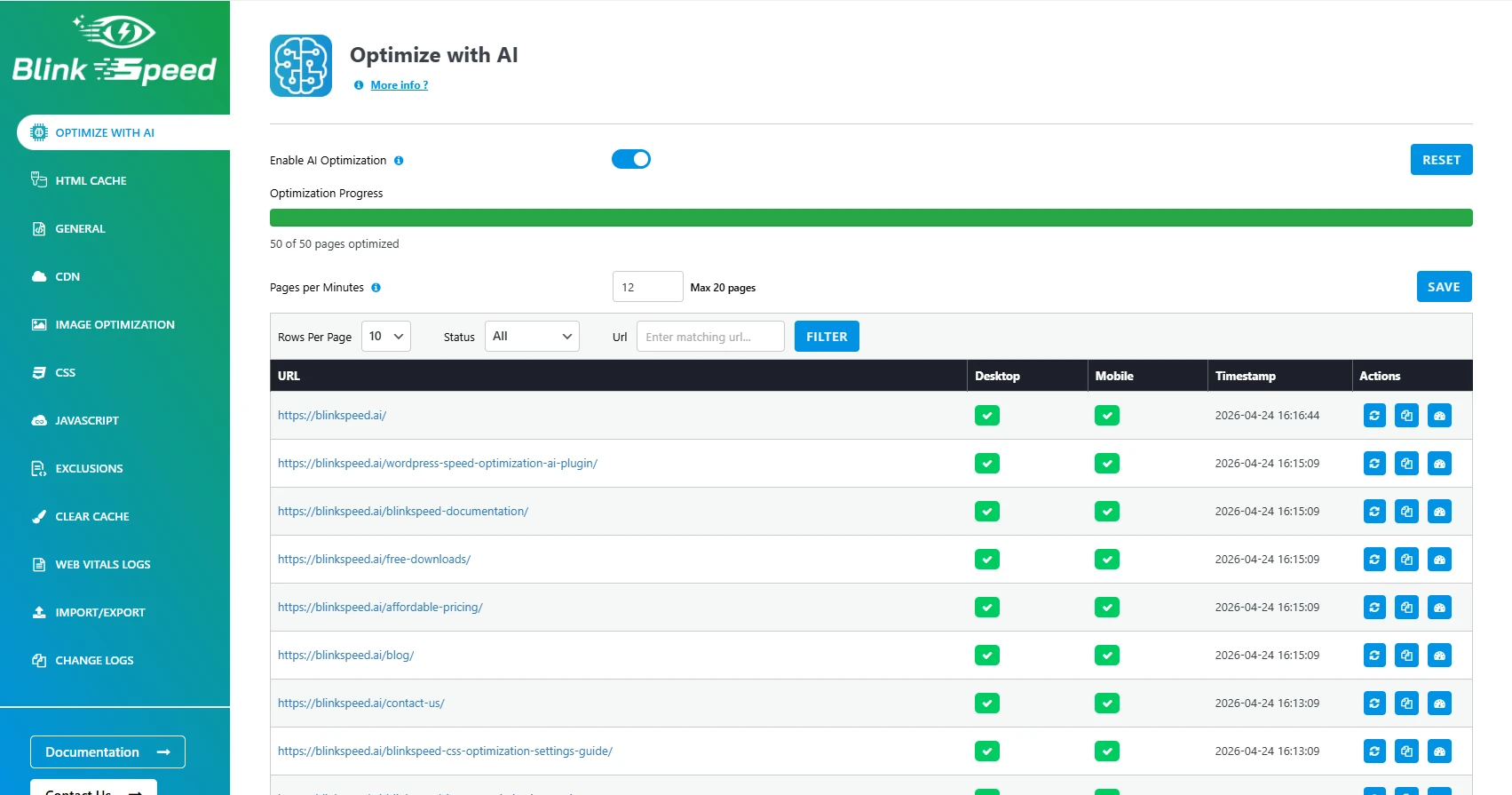
Follow this sequence for a clean BlinkSpeed AI setup:
- Open BlinkSpeed in your WordPress dashboard.
- Go to the tab or section labeled “Optimize with AI”.
- Enable the AI optimization option.
- Allow the system to populate or refresh the URL queue from your sitemap.
- Monitor progress in the optimization dashboard until batches are complete.
This is the core path to automatic performance optimization at scale: configure once, then let the plugin orchestrate crawl and optimization cycles rather than repeating manual steps per URL.
How URL processing supports AI speed optimization
Most WordPress AI optimization workflows depend on a structured list of pages:
- The plugin discovers URLs via sitemap.
- Pages move through states such as pending, in progress, and completed.
- Failures can usually be retried or reset per URL without rebuilding the entire queue.
Understanding that pipeline helps you interpret the dashboard and avoid assuming a single “magic button” replaces monitoring.
Multisite and multi-domain considerations
If you run a multisite network, decide early whether optimization is managed centrally or per site. Your BlinkSpeed AI setup should match how domains are licensed and how each subsite is governed.
Mixed domains or subdomains often need clearer separation than subfolder networks, so align your plan, license mapping, and admin workflow before you scale AI speed optimization across the network.
Verify results after you optimize with AI
After enabling automatic performance optimization, confirm outcomes with simple checks:
- Critical CSS coverage matches expectations (homepage vs full site, depending on license).
- Image optimization behavior is consistent on key templates.
- No regressions on cart, checkout, or membership flows.
- PageSpeed or Lighthouse scores move in the right direction on representative URLs.
If something breaks, roll back using exclusions or per-page reset options before continuing WordPress AI optimization.
Best practices for sustainable BlinkSpeed AI setup
- Start with a staging copy when possible.
- Keep exclusions updated for dynamic or personalized routes.
- Re-run or refresh queues after major theme or plugin updates.
- Document what the AI pass changed so your team can audit behavior later.
These habits keep optimize with AI useful without turning it into an opaque black box.
FAQs
Q1. Is “optimize with AI” the same as instant Core Web Vitals fixes?
No. AI speed optimization accelerates configuration and processing, but real-world scores still depend on content, third-party scripts, and hosting.
Q2. Do I need a premium license for full-site automatic performance optimization?
Yes, you will be needing a license key for full-site automatic performance optimization. Without a license key, AI will only optimize the home page.
Q3. Can I use WordPress AI optimization on WooCommerce stores?
Often yes, but you should exclude checkout, cart, and account areas and other dynamic pages unless you have tested them thoroughly.
Q4. Where can I read official guidance alongside this BlinkSpeed AI setup article?
Use the official BlinkSpeed documentation for UI-specific steps and troubleshooting.
Q5. What if one URL keeps failing in the queue?
Treating it as a targeted license key issue is wrong here; usually it is URL rules, firewall blocks, or page-specific conflicts. Reset that URL, add exclusions, and retry after clearing caches.