If you just installed BlinkSpeed and are wondering whether the free version is enough for your site, or whether it is worth upgrading to a premium plan – this guide gives you a straight answer.
The short version: the free version of BlinkSpeed is genuinely useful and not just a stripped-down teaser. It gives you real, meaningful performance improvements right away, across every page on your site. The premium version takes two specific features – Critical CSS generation and advanced image optimisation with WebP conversion – and extends them from your homepage to your entire site.
That difference sounds small, but depending on what kind of site you are running, it can be the difference between passing and failing your Core Web Vitals.
This guide breaks down every feature in the free version, explains exactly what the premium plan adds, and helps you make a confident plugin pricing decision without any guesswork.
What the Free Version Actually Gives You
The free version of BlinkSpeed is not a trial. There is no expiry date. You do not need a credit card. Every feature listed here works permanently, on all pages, with no hidden limits – all you need is to install the plugin.
HTML Page Caching
When a visitor lands on any page of your site, WordPress normally runs dozens of behind-the-scenes operations to build the page, checking the database, loading plugins, processing templates, before sending the result to the browser. This typically takes several hundred milliseconds.
BlinkSpeed’s HTML caching saves a ready-made version of each page as a static file. When the next visitor arrives, that static file is delivered directly, skipping all the background processing. Page load times typically drop by 50–80% from this one feature alone.
This works on every page of your site in the free version. Your homepage, blog posts, product pages, contact page, archive pages – all of them.
CSS Minification
CSS files contain a lot of extra whitespace, comments, and formatting that helps developers write and read the code but adds no value for the browser. BlinkSpeed’s CSS minification strips all of that out, producing a leaner file that the browser downloads faster. File sizes typically reduce by 20–40%.
JavaScript Minification
The same process is applied to JavaScript files. BlinkSpeed uses its built-in minifier to remove whitespace, comments, and unnecessary characters from your JS files, reducing their size without changing how they behave.
JavaScript Lazy Loading
JavaScript files that load the normal way can block your page from being displayed while the browser downloads and runs them. BlinkSpeed’s JavaScript lazy loading changes this so scripts only run after the visible part of the page has already been displayed to the visitor – or when the visitor first interacts with the page.
The result is that your pages feel faster immediately because the browser focuses on displaying content first and handles scripts afterwards. This is one of the most effective free vs paid plugin advantages that BlinkSpeed makes available to everyone.
Image Lazy Loading
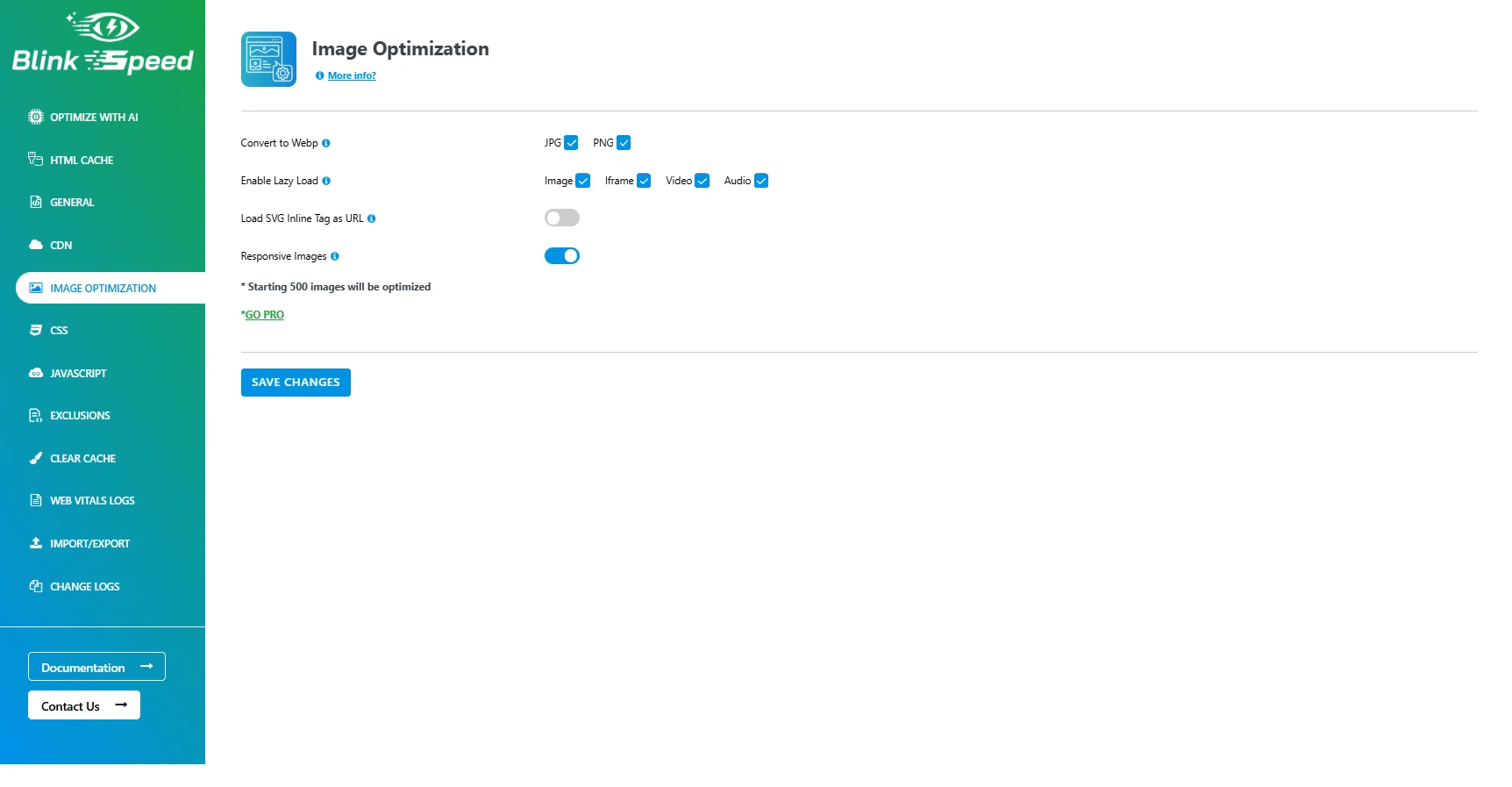
Images below the fold, the parts of the page a visitor has not scrolled to yet, do not need to load immediately. BlinkSpeed’s image lazy loading delays the download of those images until the visitor is about to scroll to them. This reduces the amount of data downloaded on initial page load and speeds up how quickly the visible content appears.
This also applies to iframes, videos, and audio elements embedded in your pages.
Browser Caching
Browser caching tells your visitors’ browsers to save copies of your site’s static files, images, CSS, and JavaScript locally on their device. The next time they visit your site, their browser loads these files from its own local storage rather than downloading them from your server again.
For returning visitors, this can make page load times feel almost instant. BlinkSpeed handles the technical configuration for this automatically through your .htaccess file.
GZIP Compression
Before BlinkSpeed sends your HTML, CSS, and JavaScript files to the browser, GZIP compression squeezes them into a much smaller size for the journey across the network. A typical HTML page of 80KB might compress to under 20KB. The browser then decompresses it locally, which takes almost no time at all.
Cache Management Tools
BlinkSpeed gives you full control over your cache from both the plugin settings panel and a quick-access menu in the WordPress admin bar. You can clear all cache with one click, clear only the cache for a specific page, or let the system manage cache expiry automatically.
Critical CSS Generation – Homepage Only
This is where the free vs paid plugin distinction begins. Critical CSS is a technique that identifies the styles needed to display the top of your page, the part visible without scrolling, and loads those styles inline right at the top of the page. Everything else loads separately.
The benefit is that your page appears styled and readable much faster, even before all your stylesheet files have finished loading. This directly improves your Largest Contentful Paint (LCP) score, one of Google’s Core Web Vitals ranking signals.
BlinkSpeed generates critical CSS through its cloud API, which analyses each page and extracts the above-the-fold styles. In the free version, this process runs only for your homepage. Every other page on your site does not receive critical CSS generation.
Advanced Image Optimisation and WebP Conversion – Homepage Only
WebP is a modern image format that delivers the same visual quality as JPEG or PNG but at a significantly smaller file size – typically 25–50% smaller. BlinkSpeed converts your JPG and PNG images to WebP via its cloud API and serves the WebP version to browsers that support it, which includes Chrome, Firefox, Edge, and Safari.
Smaller images mean faster load times, less bandwidth used, and better performance scores.
In the free version, this conversion and delivery run only for images on your homepage. Images on blog posts, product pages, category pages, and every other URL are not converted or served in WebP format without a premium license.
What the Premium Version Adds
The premium version of BlinkSpeed is the same plugin, same interface, same settings, same features – with one key difference: the homepage-only restriction on Critical CSS and advanced image optimisation is removed.
Everything in the free version continues to work exactly as it did. The premium license simply unlocks those two cloud-powered features for your entire site rather than just the homepage.
Critical CSS Generation – Premium, All Pages
With a premium license, BlinkSpeed generates critical CSS for every page on your site, not just the homepage. Every blog post, product page, category archive, landing page, and custom post type gets its own above-the-fold stylesheet extracted and delivered inline.
This means faster initial display on every page, not just the first one a visitor lands on. For sites where visitors enter through blog posts, product pages, or category archives rather than the homepage, this advanced optimization is especially significant. A visitor who discovers your site through a Google search and lands directly on a blog post or product page gets the same performance benefit as someone visiting your homepage.
Advanced Image Optimisation and WebP Conversion – Premium, All Pages
With a premium license, BlinkSpeed converts images on every page of your site to WebP and serves the optimised versions to all visitors. Every product image, blog post photo, gallery image, and background graphic across your entire site is delivered in the smaller, faster WebP format.
The AI Optimisation dashboard can process your entire URL list automatically – crawling every page, queuing images for WebP conversion, and building critical CSS for each URL in the background. In the free version, this processing is limited to the homepage URL only.
Why These Two Features Require a Premium License
Critical CSS extraction and WebP conversion both rely on BlinkSpeed’s cloud services. These are not operations that run on your own server; they require external processing resources to analyse pages, extract styles, and convert images.
Providing these cloud services has real infrastructure costs. Making them available across an entire site for every user without any license would not be sustainable. The premium license is what funds the cloud processing capacity that makes site-wide advanced optimization possible.
All other performance features – caching, minification, lazy loading, GZIP, browser cache – run entirely on your own server. That is why they are available in full on the free version with no cloud dependency.
Premium Features Comparison – Free vs Premium Side by Side
| Feature | Free Version | Premium Version |
|---|---|---|
| HTML page caching | ✓ All pages | ✓ All pages |
| CSS minification | ✓ All pages | ✓ All pages |
| JavaScript minification | ✓ All pages | ✓ All pages |
| JavaScript lazy loading | ✓ All pages | ✓ All pages |
| Image lazy loading | ✓ All pages | ✓ All pages |
| Browser caching | ✓ All pages | ✓ All pages |
| GZIP compression | ✓ All pages | ✓ All pages |
| Cache management tools | ✓ All pages | ✓ All pages |
| Multisite compatibility | ✓ All sites | ✓ All sites |
| Critical CSS generation | ⚠ Homepage only | ✓ All pages |
| WebP image conversion | ⚠ Homepage only | ✓ All pages |
| Advanced image optimisation | ⚠ Homepage only | ✓ All pages |
| AI Optimisation full crawl | ⚠ Homepage only | ✓ Full site |
How to Make the Plugin Pricing Decision for Your Site
The right choice depends on one key question: what percentage of your real visitor traffic lands on a page that is not your homepage?
For most WordPress sites, the answer is: a lot. Blog readers arrive through individual post URLs. Online shop visitors land on product and category pages. Service business leads arrive through location or service landing pages. If most of your visitors are entering your site through inner pages rather than the homepage, the free version’s homepage-only limit means the majority of your traffic is missing out on the two most impactful advanced optimization features.
Choose the Free Version If
- Your site is simple – a personal blog, a portfolio, or a brochure site where the homepage is the main destination and most visitors start and end there
- Your images are already optimised before upload, and you do not need automated WebP conversion across the whole site
- Your site already passes Core Web Vitals on inner pages; verify this through Google Search Console or a Google PageSpeed Insights test on a few key inner pages
- You want to experience BlinkSpeed and see how much the free features improve your scores before making a plugin pricing decision about the premium plan
Choose the Premium Version If
- Your site has a lot of inner pages that receive direct organic traffic – a blog, a WooCommerce shop, or any content-driven site where Google ranks individual posts and pages
- Your images are large or numerous, and you want automated advanced optimization and WebP conversion across every page without manually compressing images before upload
- Your Core Web Vitals are failing on inner pages, not just the homepage, particularly LCP (Largest Contentful Paint), where critical CSS and WebP conversion have the most direct impact
- You manage multiple sites and want to apply a consistent premium configuration quickly using BlinkSpeed’s import and export feature
- You are running a WooCommerce store where product and category pages are the most important pages for your business, and you need those pages to load as fast as your homepage
How to Upgrade Your Plugin Plan and Activate Premium
If you have a BlinkSpeed license key and want to upgrade your plugin plan:
- Go to the BlinkSpeed website and buy the WordPress plugin
- At the order confirmation, you will receive a license key, which you can also get from my order page in your account.
- Go to BlinkSpeed → General Settings in your WordPress admin dashboard
- Find the License Key field near the top of the page
- Enter your license key exactly as provided
- Click Activate
BlinkSpeed verifies the key against its API and, if valid, sets your activation status immediately. From that point, the AI Optimisation dashboard can crawl your full site URL list and process critical CSS and WebP conversion for every page.
Once activated, go to BlinkSpeed → Optimize with AI and click Start Optimization to begin the full-site processing queue.
Frequently Asked Questions
Q1. Is the free version of BlinkSpeed really free forever?
Yes. There is no trial period, no expiry date, and no credit card required. HTML caching, minification, lazy loading, browser caching, and GZIP compression all work permanently on every page without a license key. The only features limited to the homepage on the free version are critical CSS generation and advanced image optimisation with WebP conversion – both of which depend on BlinkSpeed’s cloud API for processing.
Q2. Can I try the advanced optimization features before buying a premium plan?
Yes, in a limited way. BlinkSpeed automatically generates a demo license key for your site that allows critical CSS generation and WebP conversion to run on your homepage. This gives you a real preview of what those features look like on your actual site before making a plugin pricing decision about upgrading to premium.
Q3. What happens to my advanced optimization if my premium license expires?
If a premium license expires and is not renewed, BlinkSpeed falls back to the free version behaviour. Critical CSS and WebP conversion continue to work on your homepage but stop being applied to other pages. Your existing cached files, optimised styles, and WebP images remain on your server – they are not deleted. But new pages and new images will not be processed for advanced optimization across the full site. Performance for inner pages will gradually revert as the cache expires and is rebuilt without critical CSS.
Q4. I only have one important page: my homepage. Do I need premium?
Probably not right away. If your homepage is genuinely the main page that matters – a single landing page, a coming-soon page, or a one-page business site – the free version covers your entire meaningful use case. You get critical CSS and WebP on your homepage, plus all the caching, minification, and lazy loading features across the rest of the site. In this situation, the free vs paid plugin difference does not affect your most important page at all.
Q5. Will upgrading to premium instantly improve my PageSpeed scores?
Not instantly – the AI Optimisation process needs to run first. After entering your license key and activating it, go to BlinkSpeed → Optimize with AI and start the optimisation process. BlinkSpeed crawls your site URLs, generates critical CSS for each page, and converts images to WebP. Depending on the size of your site and the preload speed setting you have configured, this can take anywhere from a few minutes to a couple of hours. Once processing is complete, the advanced optimization improvements become visible for all pages.
Q6. Does the premium plan cover multiple WordPress sites?
Each BlinkSpeed premium license covers one WordPress site installation. If you manage multiple sites, you need a separate license for each one. However, BlinkSpeed’s import and export feature makes it very straightforward to apply a consistent configuration across all your sites quickly – configure one site perfectly, export the settings as a .dat file, and import that file into each subsequent site in seconds. This makes managing agency or portfolio-wide upgrade plugin plan deployments much more efficient.
Q7. Can I use the free version on a WooCommerce store?
Yes, and it will make a noticeable difference. HTML caching, minification, lazy loading, and GZIP compression all work across your shop, product, and category pages in the free version. The limitation is that WebP conversion and critical CSS generation only run on your homepage without a premium license. For a WooCommerce store where product pages and category archives are the pages that drive conversions, upgrading to premium ensures those high-value pages receive the full advanced optimization treatment – which is typically worth it for e-commerce sites where page speed directly affects how many visitors complete a purchase.
Q8. Is the premium features comparison different for multisite networks?
No. The same free vs premium rules apply across multisite. Each subsite in a WordPress multisite network is treated as an individual site for license purposes. The free version gives all subsites the full set of server-side features, while critical CSS and WebP conversion remain homepage-only per subsite without a premium license. With a premium license on a subsite, the AI Optimisation process runs the full site crawl for that specific subsite’s URLs.
Q9. How do I know if the premium upgrade is worth it for my specific site?
The clearest signal is your Google Search Console Core Web Vitals report. If your inner pages – blog posts, product pages, category archives – are showing failing LCP scores while your homepage passes, that is a direct indication that the free version’s homepage-only advanced optimization is not covering the pages where you need it most. Run a Google PageSpeed Insights test on three to five of your most important non-homepage URLs. If those pages are scoring significantly lower than your homepage, the plugin pricing decision for premium pays for itself through improved rankings and user experience on your highest-traffic pages.