If you manage more than one WordPress site, you already know how tedious it is to configure a plugin from scratch on every new installation. You go through each tab, toggle each setting, enter exclusions one by one, and test everything – only to repeat the entire process for the next site. Multiply that by five, ten, or fifty sites, and it becomes one of the most time-consuming parts of running a web agency or managing a portfolio of websites.
BlinkSpeed solves this with a built-in import and export feature. Once you have configured BlinkSpeed perfectly on one site, you can download that entire configuration as a single file and upload it to any other site. All your settings transfer instantly – no manual re-entry, no missed toggles, no configuration drift between sites.
This guide explains exactly how the export configuration works, what is included in the file, how to import it on a new site, what gets excluded for security, and how to build a smooth agency workflow or multisite setup around this feature.
Why Copying Settings Manually Is a Problem
Before getting into how the feature works, it helps to understand what you are actually avoiding.
A fully configured BlinkSpeed installation might include dozens of individual settings across six or seven tabs: HTML caching options, CSS optimisation rules, JavaScript exclusions, image lazy load configurations, CDN paths, exclusion lists for specific pages and scripts, and more.
Recreating all of that by hand on a second site takes a long time, introduces the risk of small mistakes, and means two sites that are supposed to behave identically will inevitably have small differences that cause unpredictable results.
For freelancers and agencies, this problem scales with every client site you onboard. A plugin settings backup that you can apply to any new installation in under a minute is not just a convenience – it is a fundamental part of a professional workflow.
Where to Find the Import and Export Feature
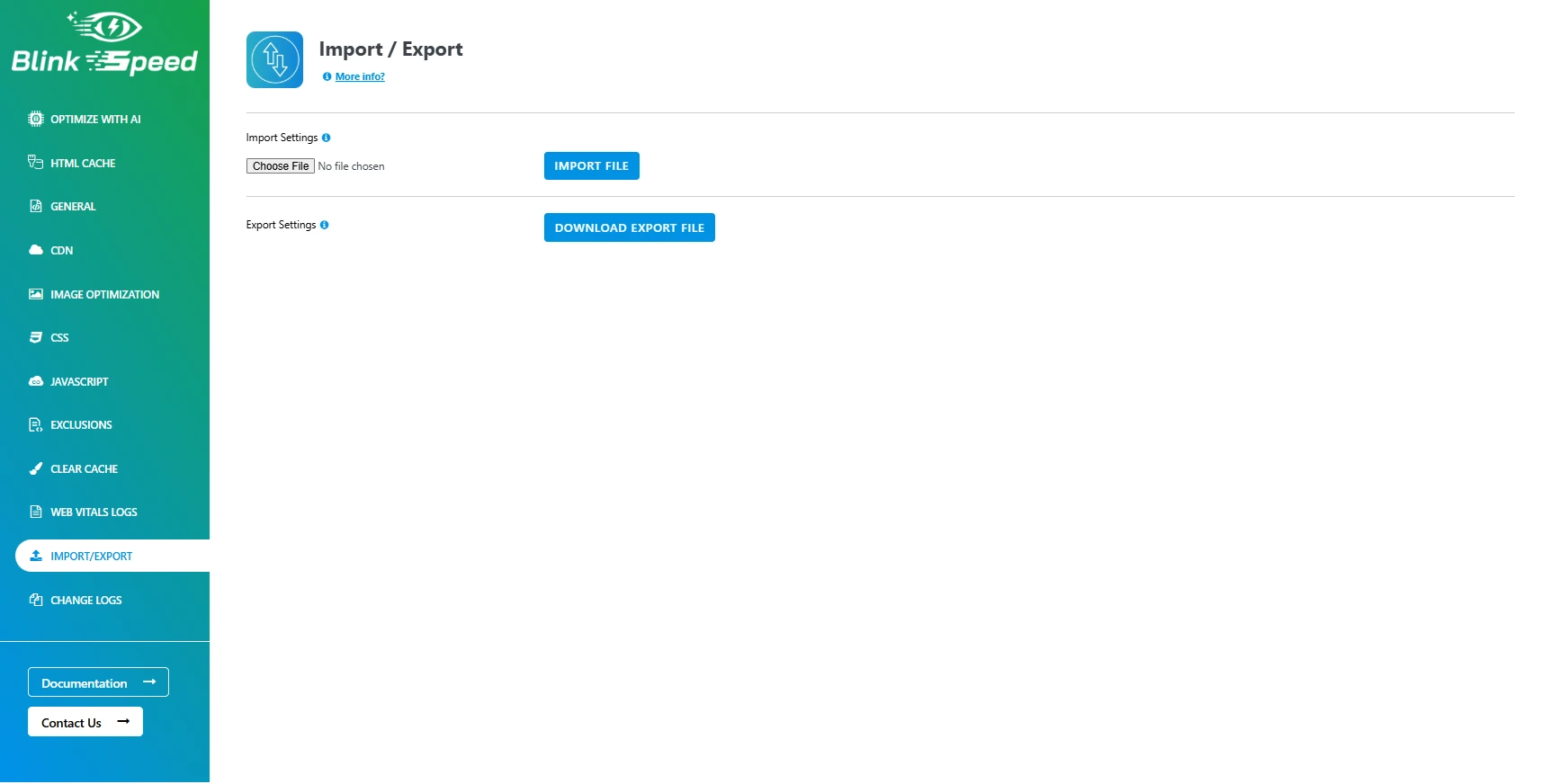
In your WordPress admin, go to BlinkSpeed → Import / Export. The page has two clearly separated sections:
- The top section is for Import Settings – this is where you upload a previously exported file
- The bottom section is for Export Settings – this is where you download your current configuration
That is the entire interface. It is intentionally simple: one button to download, one file picker and button to upload. Everything happens in these two actions.
How to Export Your BlinkSpeed Configuration
Step 1 – Configure BlinkSpeed on Your Reference Site
Before exporting, make sure the site you are exporting from is fully set up the way you want. This site becomes your template. Go through every BlinkSpeed tab: General, HTML Cache, CSS Optimisation, JavaScript Optimisation, Image Optimisation, CDN, and Exclusions, and confirm every setting is correct.
Think of this as building your master configuration. The export configuration you produce from this site is what every other site will inherit when you import it.
Step 2 – Click “Download Export File”
Navigate to BlinkSpeed → Import / Export and click the Download Export File button in the Export Settings section.
Your browser will immediately download a .dat file. The filename is automatically generated using your site’s domain name and the current date and time, following this format:
yourdomain.com-2025-06-10-14-30-00.dat
For example, if your site is myagency.com and you export at 2:30pm on 10 June 2025, the file will be named:
myagency.com-2025-06-10-14-30-00.dat
This naming convention makes it easy to manage multiple export files and know at a glance which site and date each one came from.
What Is Inside the Export File
The .dat file contains a serialised snapshot of your entire BlinkSpeed settings array, every option from every tab, packaged into a single compact file. You do not need to open or read this file. It is not meant to be human-edited. It is a machine-readable settings bundle that BlinkSpeed knows how to read back on the destination site.
Critically, two fields are intentionally excluded from every export:
- License Key – Your premium license key is specific to your account and should not be shared. BlinkSpeed strips this from the export automatically before the file is created.
- Activation Status – Whether the license is currently active on the source site is also removed. The destination site will need its own license key if premium features are required.
This means the export configuration is safe to share with team members, colleagues, or even clients – your license credentials are never included.
How to Import Settings on Another Site
Step 1 – Install BlinkSpeed on the Destination Site
Before importing, make sure BlinkSpeed is installed and activated on the site you want to configure. It does not need to be set up – you can import immediately after activation.
Step 2 – Go to Import / Export
In the WordPress admin of the destination site, navigate to BlinkSpeed → Import / Export.
Step 3 – Upload the .dat File
In the Import Settings section at the top of the page, click the file picker (it accepts .dat and .txt files) and select the export file you downloaded earlier. Then click Import File.
BlinkSpeed reads the file, validates the contents, and if the data is valid, immediately overwrites the current settings on the destination site with everything from the export file. The page then redirects back to the Import / Export tab with a success message.
If the file is unreadable or invalid, BlinkSpeed redirects with a failure message and the existing settings are left unchanged.
Step 4 – Clear the Cache on the New Site
After importing, go to BlinkSpeed → Cache and click Delete HTML/JS/CSS Cache. This ensures the newly imported settings take effect immediately on all pages, rather than old cached files continuing to be served under the previous (or default) configuration.
Step 5 – Add Your License Key
Since the license key is excluded from the export file, you need to enter it manually on each destination site. Go to BlinkSpeed → General and enter your license key in the License Key field if you have a premium subscription. Without a license key, premium-only features like sitewide WebP conversion will run in demo mode (homepage only).
Using Import and Export in an Agency Workflow
For web agencies managing multiple client sites, the import and export feature is the foundation of a scalable, repeatable plugin settings backup and deployment process. Here is how to build a practical agency workflow around it.
Build One Master Configuration
Choose one site as your configuration reference, either a dedicated staging environment or your most mature client site. Configure BlinkSpeed on this site exactly how you want all new client sites to behave: caching settings, JavaScript exclusions, image optimisation, CDN paths if applicable, and all other performance settings.
Export the configuration from this site and save the .dat file somewhere your whole team can access it – a shared Google Drive folder, a Dropbox folder, a project management tool’s file storage, or a private GitHub repository. This is your agency’s master plugin settings backup.
Apply to New Client Sites in Seconds
Every time you spin up a new client site and install BlinkSpeed, go straight to Import / Export, upload the master .dat file, and click Import File. The entire configuration is applied instantly. What would have taken 15–30 minutes of manual setup is done in under a minute.
This also eliminates configuration errors. Every site starts from the same validated, tested baseline – there is no risk of forgetting to enable a particular setting or accidentally leaving a default in place that causes a performance issue.
Version Your Configuration Files
As you refine your standard configuration over time, adding new JavaScript exclusion rules, adjusting cache expiry times, enabling new features, export a new master file and save it with a clear version name:
agency-config-v1-2025-01.dat
agency-config-v2-2025-06.dat
Keeping version history means you can always roll back to a previous configuration if a new setting causes unexpected problems, and you know exactly when each change was made.
Adapt Per Site Without Losing the Baseline
The import overwrites all settings, so if a specific client site needs different exclusion rules (for a custom plugin that conflicts with lazy loading, for example), apply those customisations after the import rather than before. Import the master configuration first to get the baseline, then make the site-specific adjustments on top of it.
Using Import and Export for a Multisite Setup
If you are running WordPress Multisite, a single WordPress installation that hosts multiple sites under one admin, the import and export feature helps maintain consistent performance settings across all subsites.
Each subsite in a multisite network is a separate WordPress site with its own BlinkSpeed settings. The import and export feature works on a per-subsite basis. To apply a consistent configuration across your entire network:
- Export the configuration from your primary subsite
- Log into each subsite’s admin via the network admin panel
- Navigate to BlinkSpeed → Import / Export on each subsite
- Import the exported file
This creates a consistent performance profile across all subsites without requiring each to be configured individually from scratch. For networks with many subsites, this is significantly faster than manual configuration and reduces the chance of inconsistencies between subsites causing different performance behaviour.
Saving Settings as a Plugin Settings Backup Before Making Changes
The export feature doubles as a safety net. Any time you are about to make significant changes to your BlinkSpeed configuration – enabling a new feature, restructuring your exclusion lists, changing JavaScript optimisation settings – export your current settings first.
If the new configuration causes issues, you have a restore point. Go back to Import / Export, upload the backup .dat file, and click Import File. Your settings revert to the pre-change state instantly. No guesswork about which setting you changed, no manual recreation of a configuration you no longer fully remember.
This is particularly valuable before:
- Upgrading to a new version of BlinkSpeed
- Changing hosting providers (where cache delivery settings may need to change)
- Running performance experiments where you want to A/B test different configurations
- Handing a site off to a client who may accidentally change settings
Make it a habit: export before you change, so you always have a plugin settings backup to fall back on.
What Happens to Settings That Do Not Transfer
While the import and export transfer all BlinkSpeed settings, a few things require manual attention on the destination site because they are environment-specific rather than configuration-specific.
License Key – As mentioned above, this is excluded from the export intentionally. Enter it manually on each destination site.
Cache Files – The export contains settings, not cached data. Cached HTML, CSS, and JavaScript files are site-specific and do not transfer. After importing, BlinkSpeed will generate fresh cache files for the destination site as visitors arrive (or via the preload system if enabled).
CDN URLs – If your CDN URL settings use absolute paths or domain-specific addresses that differ between sites, review the CDN tab after importing and update the URLs to match the destination site’s CDN configuration.
Site-Specific Exclusions – Some of your exclusion rules may be tied to plugin file paths or page URLs that are specific to the source site. If the destination site uses different plugins or has different URL structures, review the Exclusions tab after importing and adjust any rules that reference source-site-specific paths.
Frequently Asked Questions
Q1. Is the export file safe to share with a team member or client?
Yes. BlinkSpeed automatically removes the license key and activation status from the export file before it is created. The file contains only your performance configuration settings – caching options, CSS and JavaScript optimisation rules, image settings, exclusion lists, and so on. There is no sensitive account information in a .dat export file.
Q2. Can I use one export configuration on sites running different themes or page builders?
Yes, with a caveat. The core performance settings – caching, minification, GZIP, browser cache, lazy loading, transfer and work identically regardless of theme or page builder. However, exclusion rules that reference specific CSS class names, plugin file paths, or script names may need to be adjusted if the destination site uses different plugins or a different theme. Import the configuration, then review the Exclusions tab to check whether any rules reference source-site-specific content.
Q3. Does importing settings overwrite everything, or does it merge with existing settings?
Importing overwrites all existing BlinkSpeed settings on the destination site with the contents of the uploaded file. There is no selective merge. This is why it is recommended to export the destination site’s current settings before importing, especially if it has already been configured and you want to preserve any site-specific customisations.
Q4. What file format does the export use, and can I edit it manually?
The .dat file contains PHP serialised data – a binary-like format used to store PHP arrays. It is not designed to be human-readable or manually edited. Opening it in a text editor will show unreadable characters. Do not attempt to edit the file; importing a modified or corrupted file will cause the import to fail and BlinkSpeed will redirect with an error message, leaving existing settings untouched.
Q5. Can I use the export configuration across different versions of BlinkSpeed?
In most cases yes, as long as you are importing into the same major version or a newer one. BlinkSpeed’s settings structure is stable across minor updates. If you are importing a configuration from a significantly older version into a much newer one, some newer settings may not be present in the imported file and will default to their standard values – but no existing settings will break. As a precaution, always export from and import to the same or similar version when possible.
Q6. How does the export configuration help with agency workflow for clients who manage their own sites?
Once you have imported your master configuration onto a client site, the client’s day-to-day use of the site does not affect BlinkSpeed’s performance settings unless they deliberately navigate to the BlinkSpeed admin and change something.
For extra protection, you can restrict access to BlinkSpeed settings – the plugin uses a custom WordPress capability called blinkspeed_settings that is assigned only to administrators. If you create a custom user role for your client without this capability, they cannot access or accidentally modify BlinkSpeed settings at all.
Q7. Does the import and export work with WordPress multisite?
Yes. Each subsite in a multisite network operates independently for BlinkSpeed settings. You can export from one subsite and import into any other subsite individually. The import and export panel is accessible from each subsite’s admin dashboard under BlinkSpeed → Import / Export. There is no network-wide mass import currently, so for large networks you would need to import on each subsite separately.
Q8. What should I do if the import fails?
BlinkSpeed will redirect back to the Import / Export tab with a failure message if the uploaded file cannot be read or validated. The most common causes are uploading the wrong file type, uploading a corrupted or incomplete .dat file, or uploading a file that was manually edited.
Check that you are uploading the original unmodified .dat file downloaded from BlinkSpeed. If the problem persists, try re-exporting from the source site and using the fresh file. The destination site’s existing settings are never modified when an import fails – it is safe to retry.